Surveys

Overview
Surveys are a significant feature inside the Cotalker environment that help gather data from users. Usually created by admins, surveys have a form-like aspect that makes it easier for users to fill them out.
Example of a survey used for creating a corrective maintenance task:
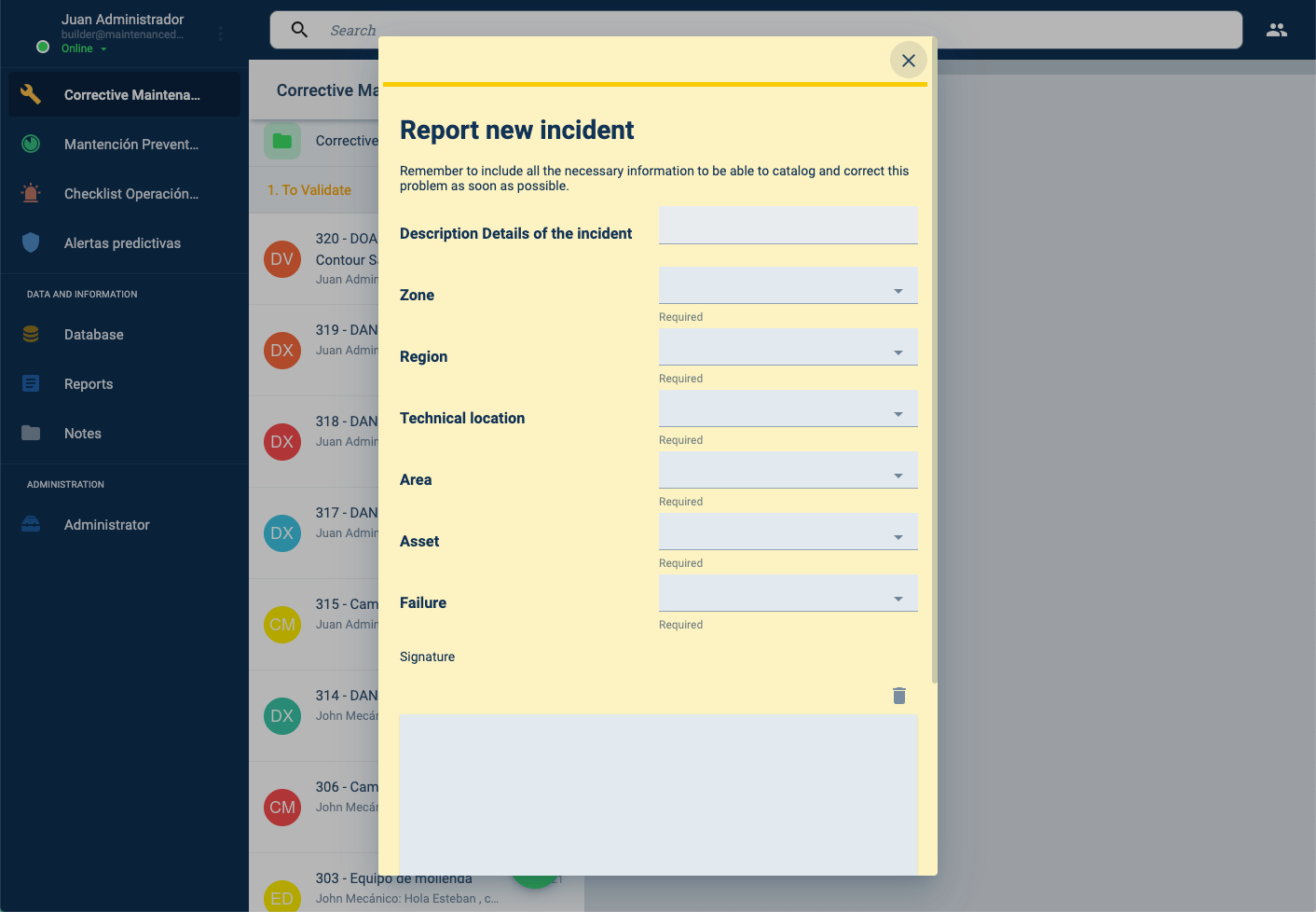
Diverse data can be entered through surveys, such as written text, multiple-choice questions, date and time, ratings, location, images, and even QR Code and NFC input on mobile apps.
A survey can even require you to sign your name using a pointing device, such as a mouse or your finger if you're using a mobile device.
Answered surveys appear within the corresponding channel workspace, they can also be retrieved in the Reports section.
Surveys can also be made public, allowing them to be answered and submitted by anyone outside the Cotalker environment.
Below is an example of a submitted survey displayed in the task's channel. The task and its channel were automatically created with the submission of the survey:
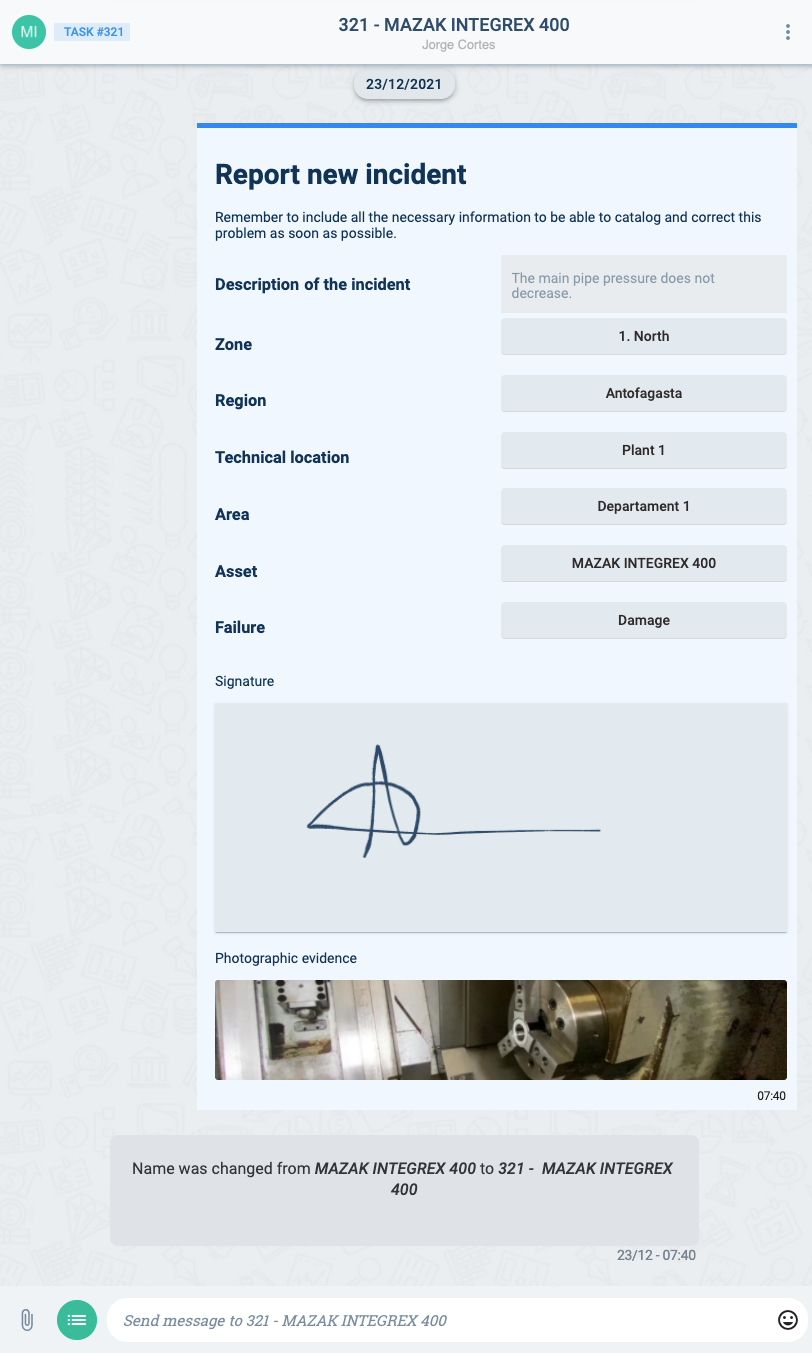
In the channel, all users associated with the task can reference the data submitted through the survey. Users can continue to communicate with each other through the channel to ask for specifications, add more context, share updates, or anything else relevant to the task.
How to access a survey
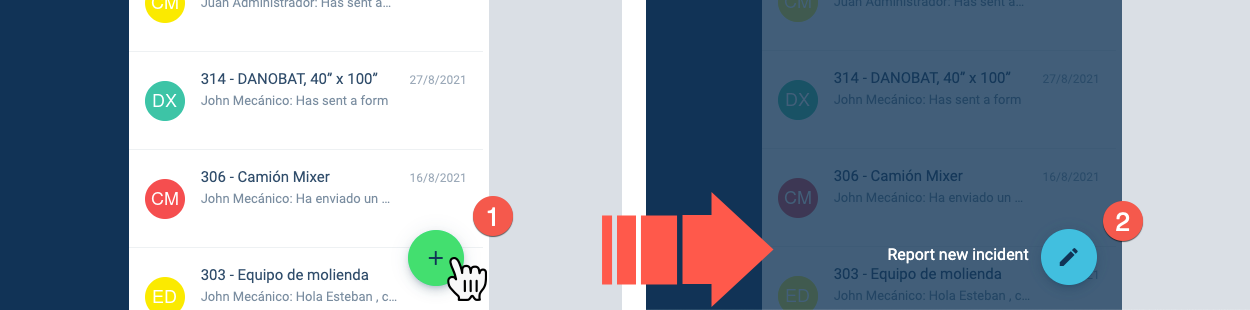
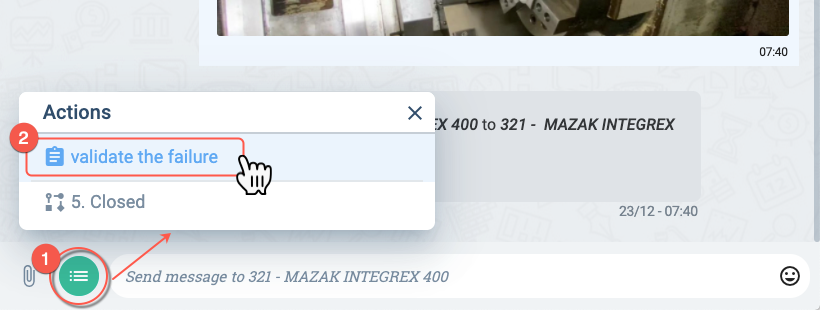
Available surveys can be found through group panel and channel workspace action buttons.
Opening a survey from the group panel usually means a task will be created once it is submitted:
Opening a survey from a task's channel workspace can be used to change the state of the task.
Dynamic Surveys
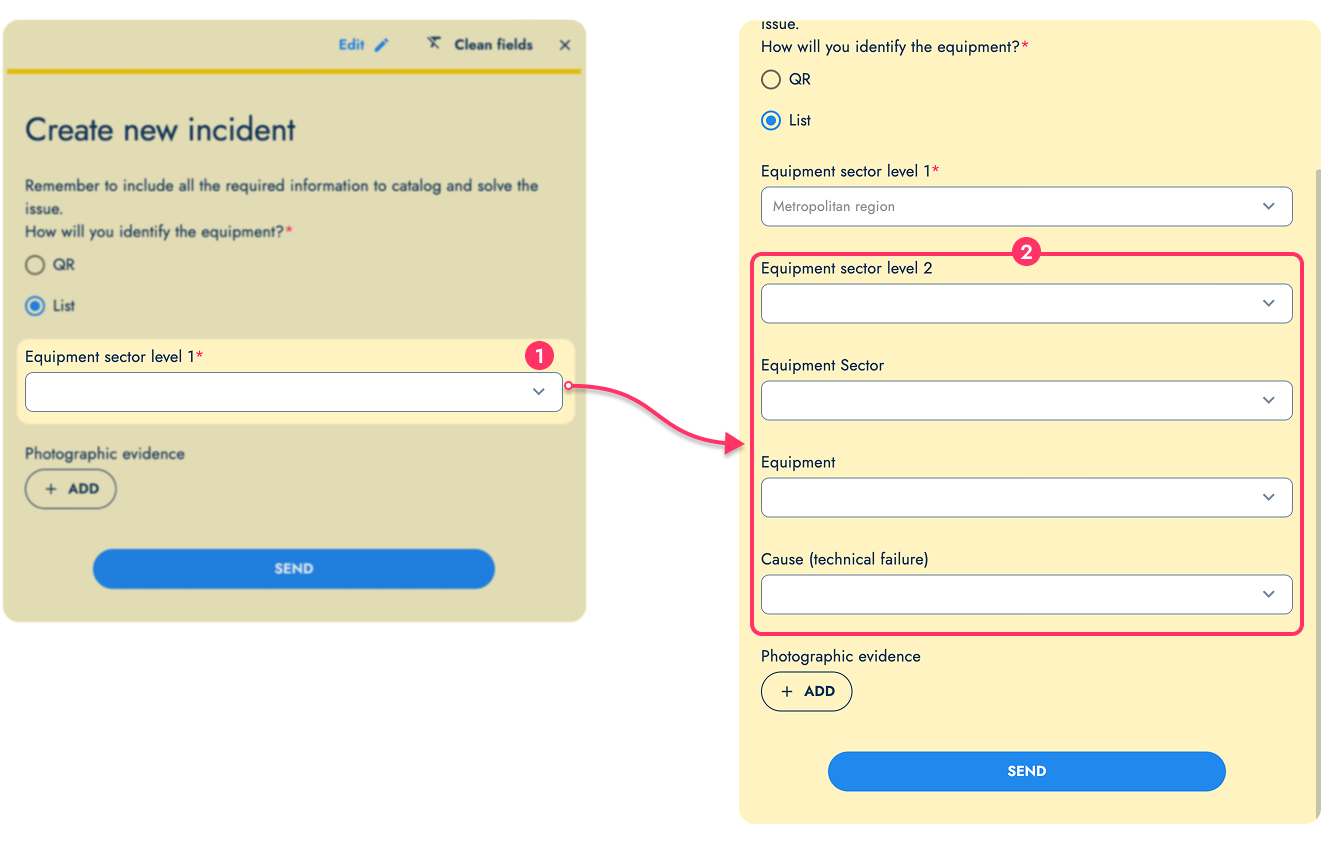
Surveys can also be dynamic. Depending on the answer given to a question, new questions can appear on the survey.
In the example below, anserwing "yes" to a question displays new questions to gather further data to initiate a work order.
Surveys with Automations
Automations can also be built into the survey, allowing automatic actions or data gathering to take place either when the survey is being filled out or when it has been finally submitted. For example, notifications can be sent to interested parties, data can be used to calculate costs, and much more.
Below is a simple example of a bot that sends to the channel an automatic message and a GIF image from an external website after a new employee submits a personal information survey.

Notice how, in the example above, the bot takes data from the survey answers to carry out its routine.
Survey Location Questions
Surveys can also ask users to input map locations. Depending on the question's configuration, users will be able to either send only their current GPS location or choose to among their current location or any other location they wish.
Below is an example of a survey question that allows users to freely choose a location.
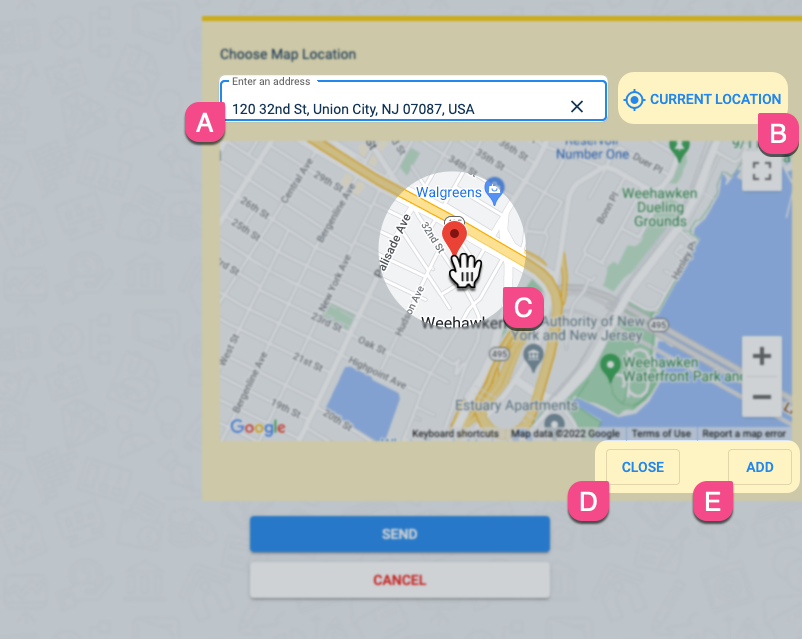
- A. Type a location address manually.
- B. Choose to send your current location
- C. Double-click with the cursor on the map to indicate the location.
- D. This cancels any changes made on the map.
- E. This adds the location to the survey as an answer.