Service Orders Workflow
Once the service order is released, field workers, i.e., those involved in carrying out the requested service, can update the service order's status. Status updates include closing, modifying, or not performing the service order. These status updates are informed through the actions button at the bottom of the channel workspace. All these updates aim ultimately at closing the workflow.
Updating Service Order Status
To update the status of a released service order:
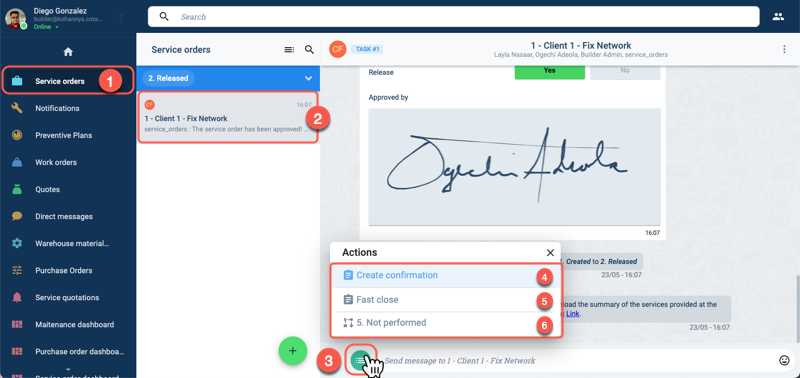
- Press Service orders on the Main Menu Bar.
- Choose the released service order to be updated from the Service orders panel.
- In the channel workspace, press the actions buttons to open Actions menu.
- The Actions menu has the following update options to choose from:
- A. Create confirmation: Opens a form used to modify the service order in case of unforeseen issues. This action can be repeated as many times as necessary. When no more modifications are to be introduced, the service order can be closed through this form.
- B. Fast close: Opens a form to close the service order when no modifications are to be introduced to the service order.
- C. Not performed: When the field workers cannot perform the job, they can press this button to close the workflow immediately and set its status to Not performed.
A. Create Confirmation
Field workers can fill out this form to modify the service order if new specifications or unforeseen events arise.
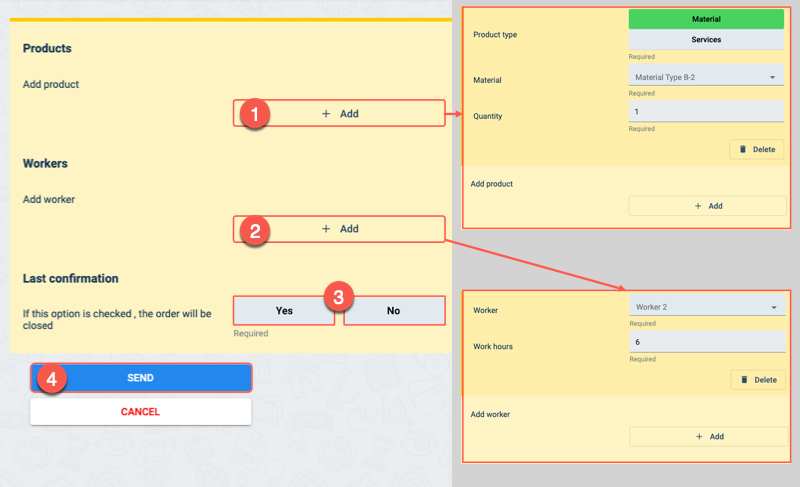
- Products: Press + Add to include revised material and service information.
- Workers: Press + Add to update staff information.
- Last confirmation: Select Yes to close the service order with the latest modifications and pass it on to the Finally confirmed workflow state. Select No to leave the service order open to new updates that could be added later on, leaving it in the Partially confirmed workflow state.
- SEND: Click here to submit the form and apply the updates.
The first confirmation deletes the original service order's product and staff details. But each sequential confirmation adds upon the first confirmation.
B. Fast Close
The Fast Close form is used to close the service order when the job has been completed as initially stipulated.
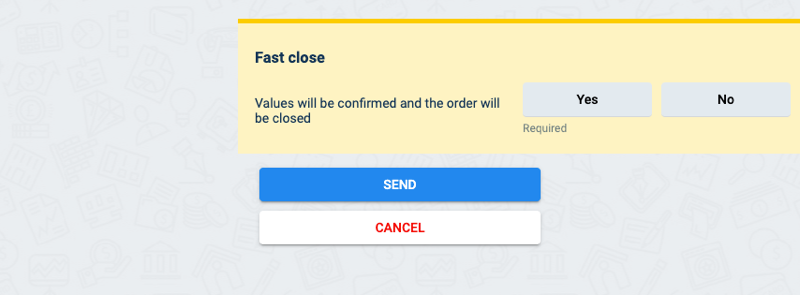
If the answer is Yes, the service order is closed with the same values it was initiated with and passed on to the Finally confirmed workflow state. If No, the service continues in the same workflow state.
C. Not Performed
The Not Performed option is used to close the service order and pass it to the Not Performed workflow state.
This option cancels all service costs and terminates the service order.