Service Orders Workflow
The first step consists in creating a service order which will then be sent to a supervisor or coordinator for review. The Create Service Order form is connected to the company's master data, allowing to complete the service order with previously-entered client data and service costs.
Only authorized users can create a service order. The data gathered to make the service order can be used for further analysis and displayed on the service orders dashboard. The service order can be updated later with unforeseen expenses and costs.
Accessing the Form
To access the Create Service Order form:
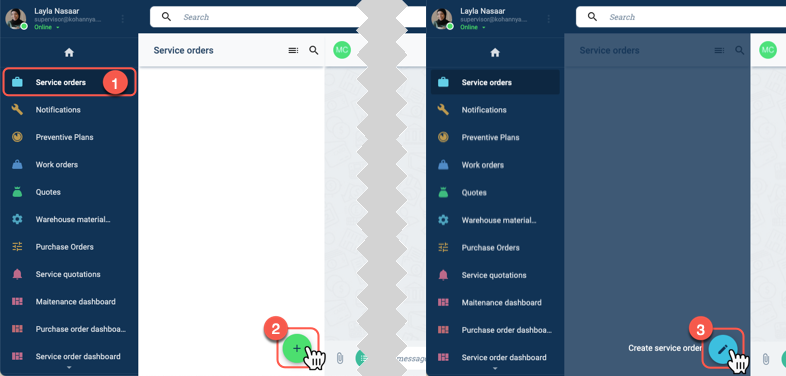
- Select Service Orders from the Main Menu Bar.
- In the Service orders panel, press the green action button.
- Select the Create service order option to open the form. The form will open up, as shown below.
Basic Form Layout
Below is an example of the form being filled out.
General data of the order
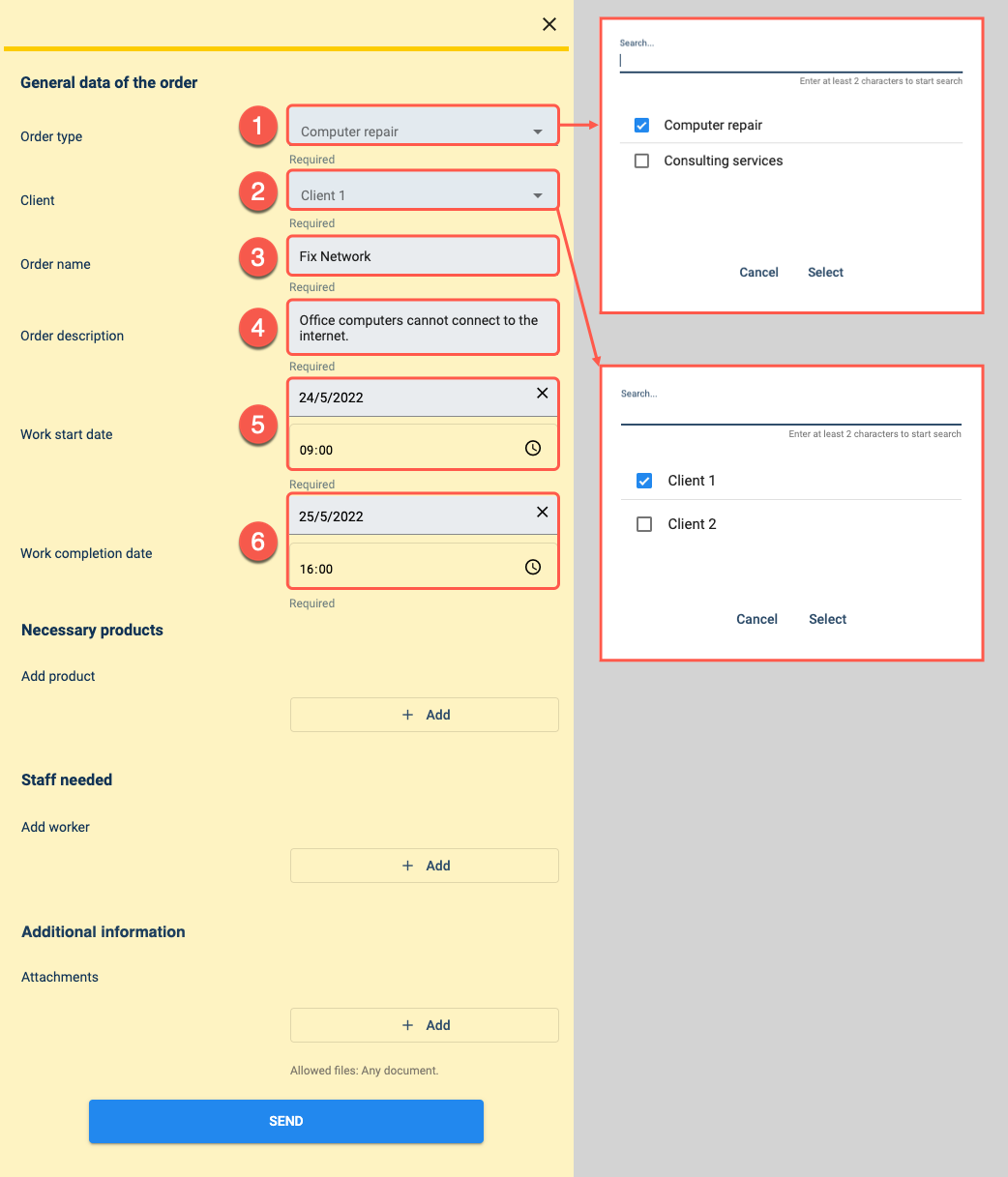
- Order type: Indicate the type of service to be performed. Available options are previously set through the company's master data.
- Client: Choose the client requesting the service. The list of clients and their respective information is previously set through the company's master data. The information associated with the chosen client is internally fetched and used to generate the service order.
- Order name: Give the service order a reference name.
- Order description: Give a brief description of the service to be provided and its context.
- Work start date: Indicate the date and time the service should commence.
- Work completion data: Indicate the date and time the service should be concluded.
Necessary products, Staff needed, Additional information
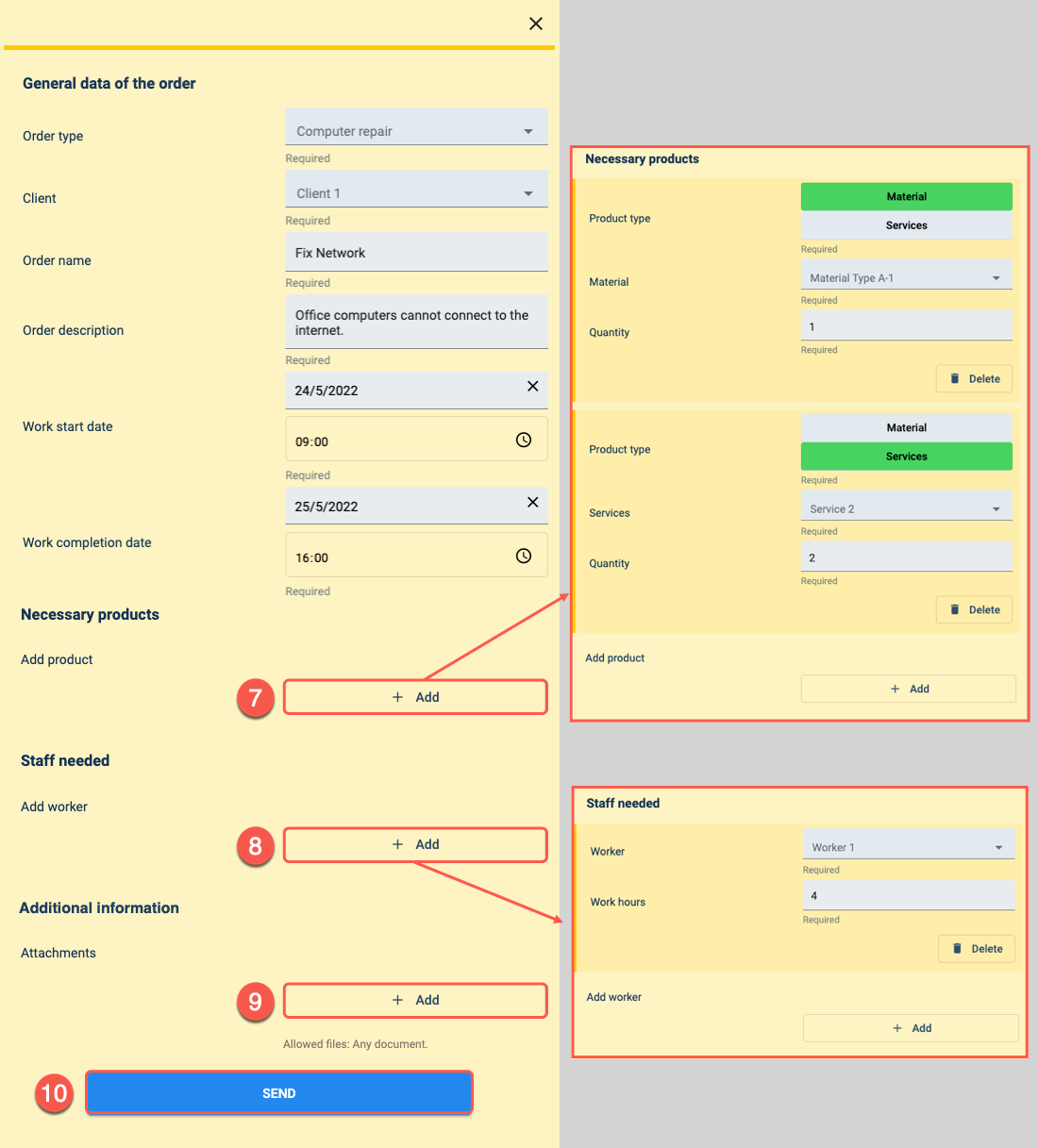
- Necessary products: Press the + Add button to indicate any products to be used in the service order. Product types are divided into materials and services. Each product type is connected to the company's master data, allowing users to choose from a list of the specific products, i.e., materials or services, to be used. The cost of the chosen services and materials are added to the service order.
- Staff needed: Press the + Add button to indicate the workers assigned to the task and the number of hours it should take them to complete the job.
- Additional information: Press the + Add button to attach files that contain any necessary information to complete the job. Files can be in any format.
- SEND: Click here to create the service order and submit it for review.
Visit the customization page or contact a Cotalker Sales Representative for more information on how to customize surveys for your company's needs.