Service Quotations Workflow
Overview
Once the request has been accepted, the service provider can create the quotation. The form is connected with the company's master data, providing materials, services, and worker details to help automate generating the quote. After submission, an email is automatically sent to the client with a PDF version of the quote and a link to accept or reject the quotation. The quote's PDF version will also be available in the channel workspace.
Accessing the Form
To access the Create Service Quote form:
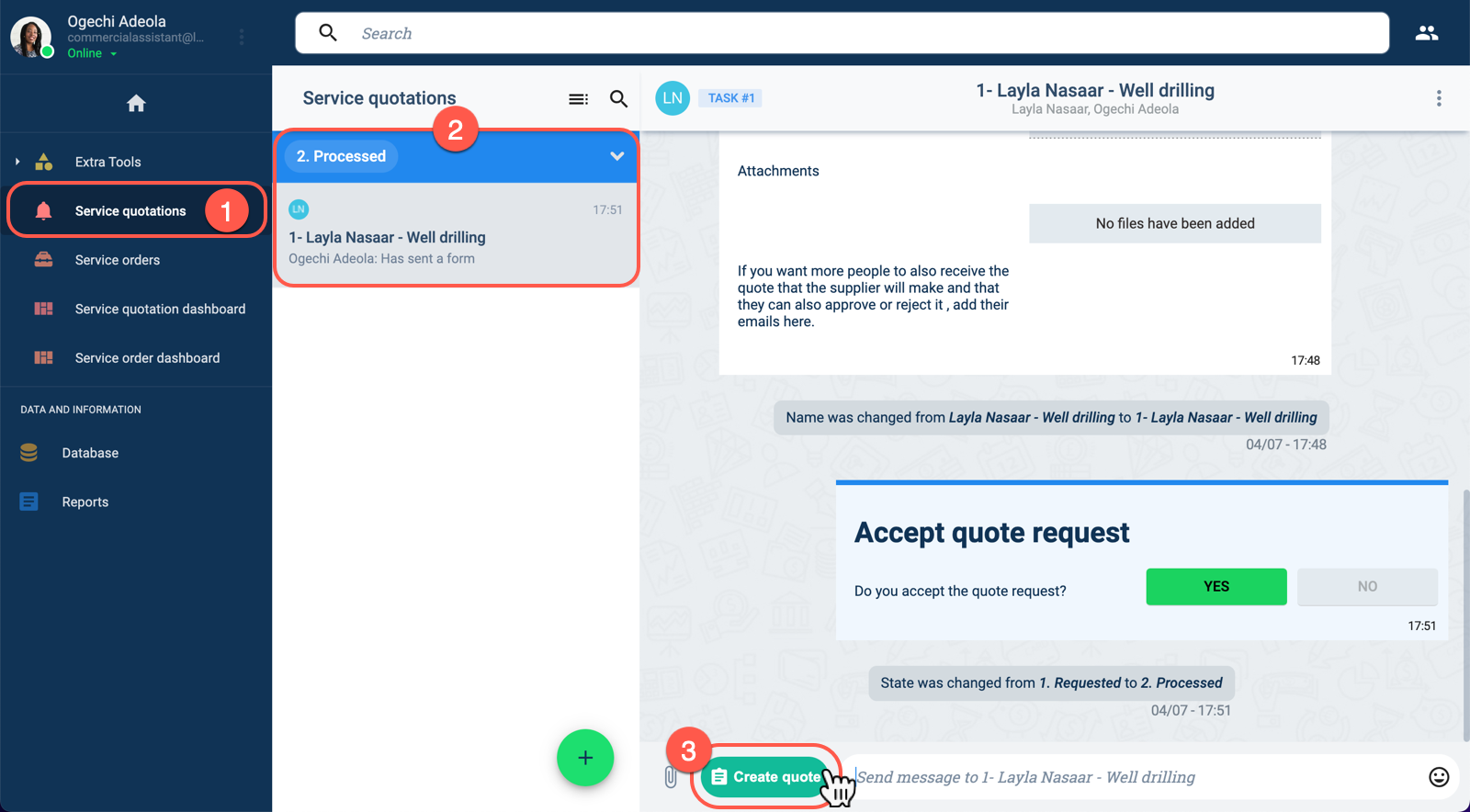
- From the Main Menu Bar, select Service Quotations.
- In the Service quotations group panel, choose the corresponding task under the Processed label.
- At the bottom of the channel workspace, click the Create quote button to open the form. The form appears as shown below.
Layout
The Create Service Quote form looks initially like this:
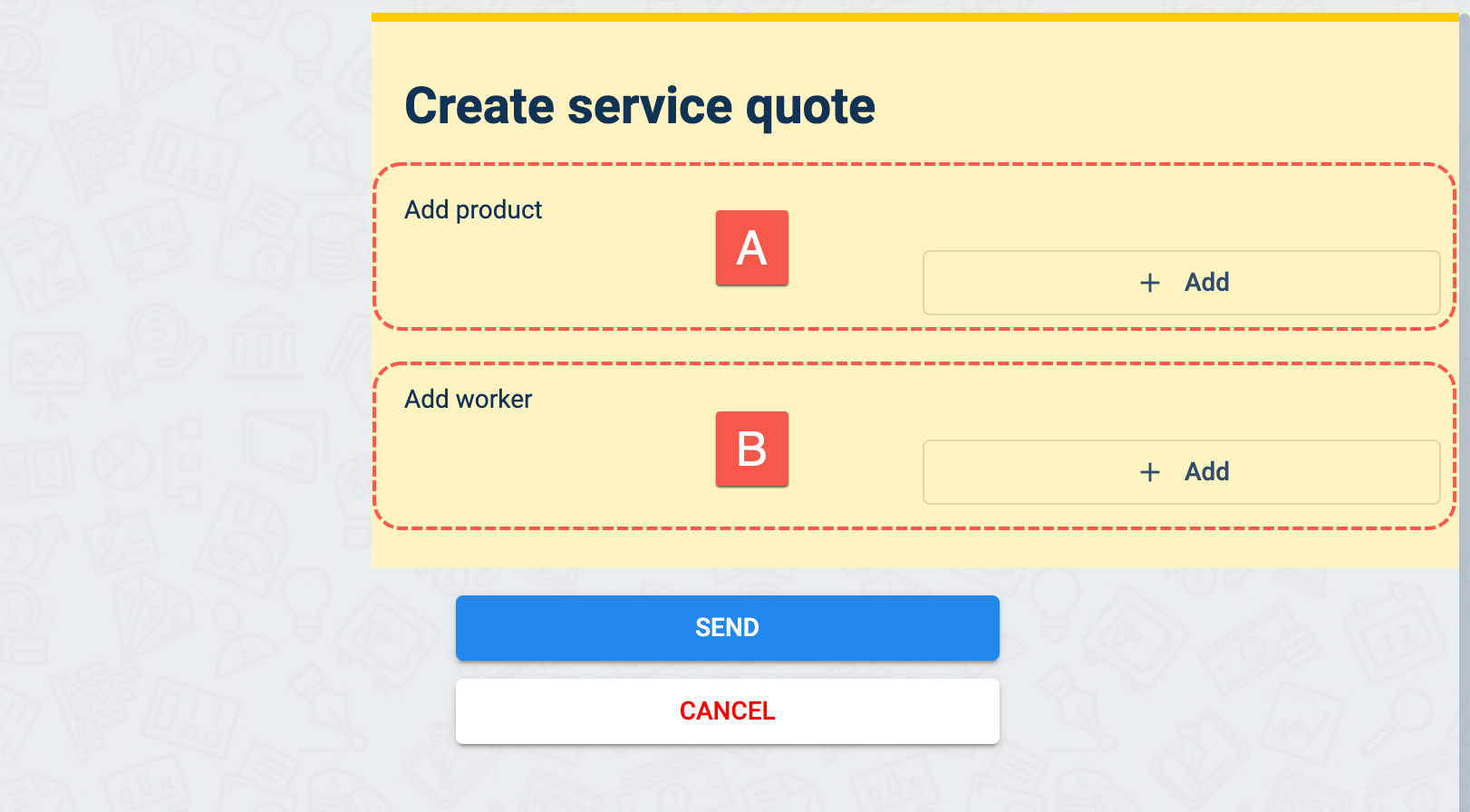
A. Add Product: Allows you to add materials and services registered in the master data along with the quantities needed for each one. Availability of materials depends on inventory registered in the database.
B. Add Worker: Allows you to add workers registered in the database and the number of hours each one will work.
Add as many products (materials, services) and workers as needed.
A filled-out form looks something like this:

A. Add Product (1 & 2):
- Press the + Add button to add a product to the quotation. Add as many products as you need.
- Choose material or services for the Product type.
- Choose specific materials or services found in the master data.
- Insert the required quantity. Costs will be automatically calculated when generating the quote.
B. Add Workers (3 & 4):
- Press the + Add button to add person-hours per worker. Add as many workers as you need.
- Choose a worker from the list.
- Insert the number of hours the worker will dedicate to the service. Costs will be automatically calculated when generating the quote.
After Submission
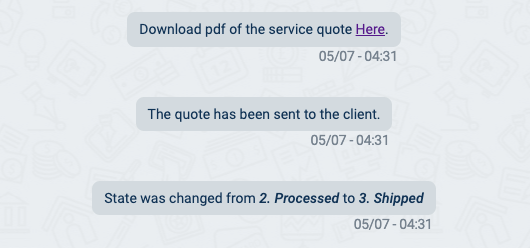
After submitting the form, three actions are automatically carried out:
- A link to the PDF version of the service quote is posted on the channel.
- An email is sent to the client with the quote and a link to the approval form.
- The workflow passes to the following state, awaiting a response from the client.
In the following step of the process, we view the email sent to the client, which includes a PDF of the quotation and a link to the approval form.