Work Orders Workflow
Create Work Order
Layla is a supervisor in her company. She just received a notification about a water leak in the northern premises through the Cotalker platform. She will use the same Cotalker channel to create a work order requesting a contractor's services. To do this, she will fill out the Create Work Order form, as shown below.
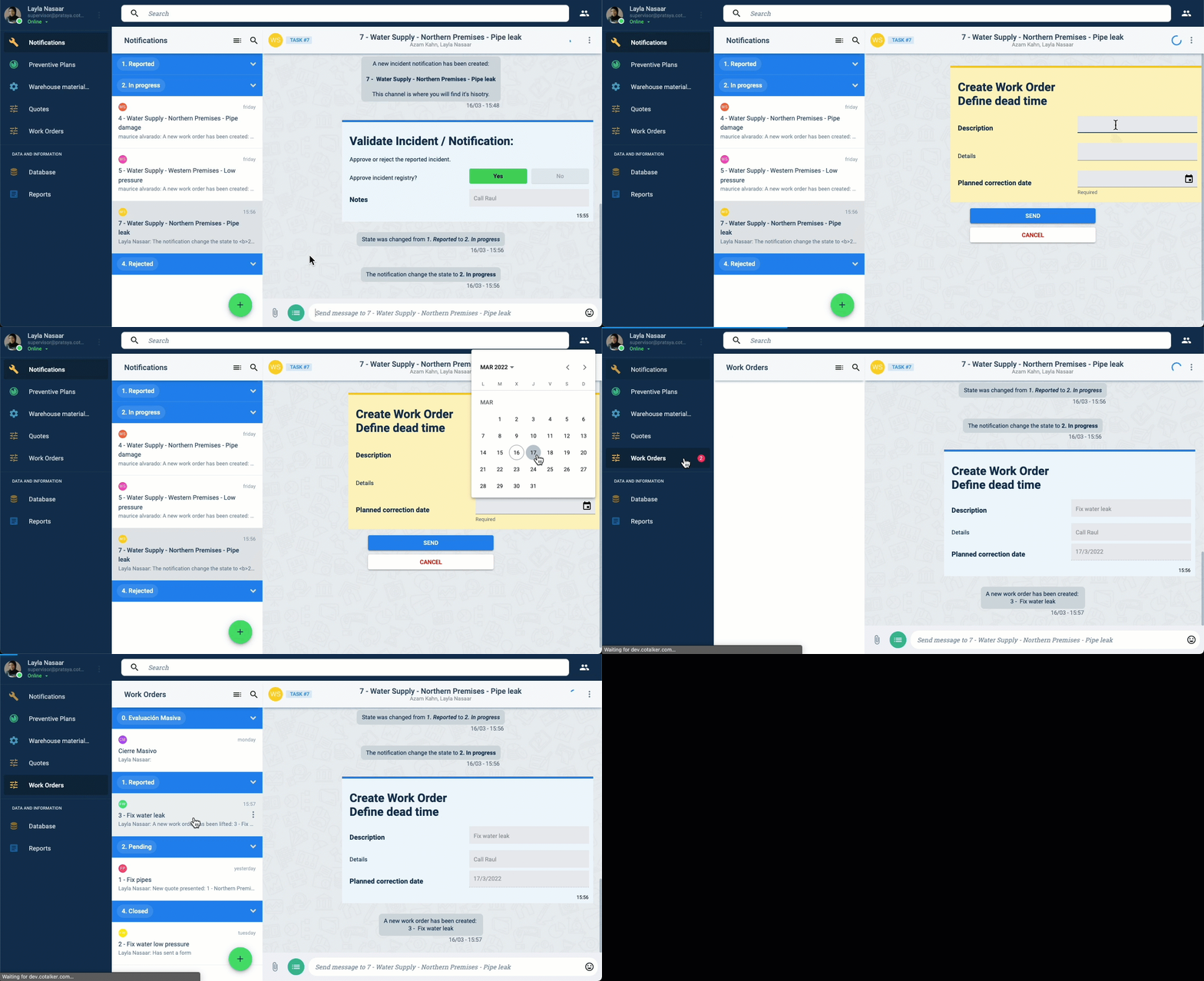
Once submitted, the Work Order workflow is initiated, and the work order is sent to contractors.
Accept Work Order
Thomas, a contractor, received the work order Layla submitted. After checking out the details of the maintenance issue, he chooses to accept the task. He can then submit the Accept Work Order form on the same channel he received the work order.
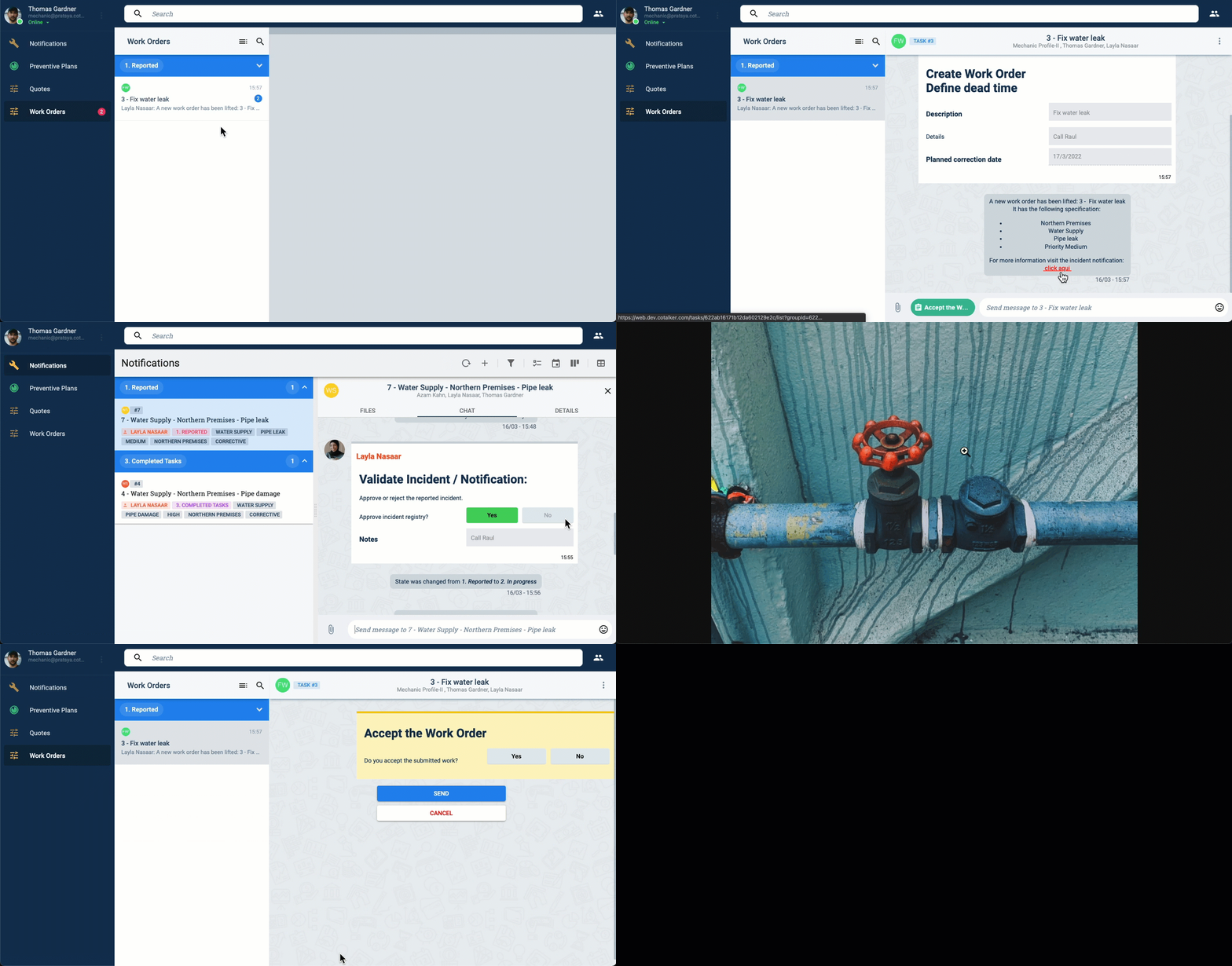
Layla will be able to see on the channel that Thomas accepted the work order.
Send Quote
After reviewing the details of the incident, Thomas sends a first quote using the New Quote form.

Layla can see the quote in the work order's channel. Additionally, the quotes workflow is initiated with the company's budget manager.
Close Work Order
Thomas was able to finish the job on time. Now he wants to close the work order, so he fills out the corresponding form.
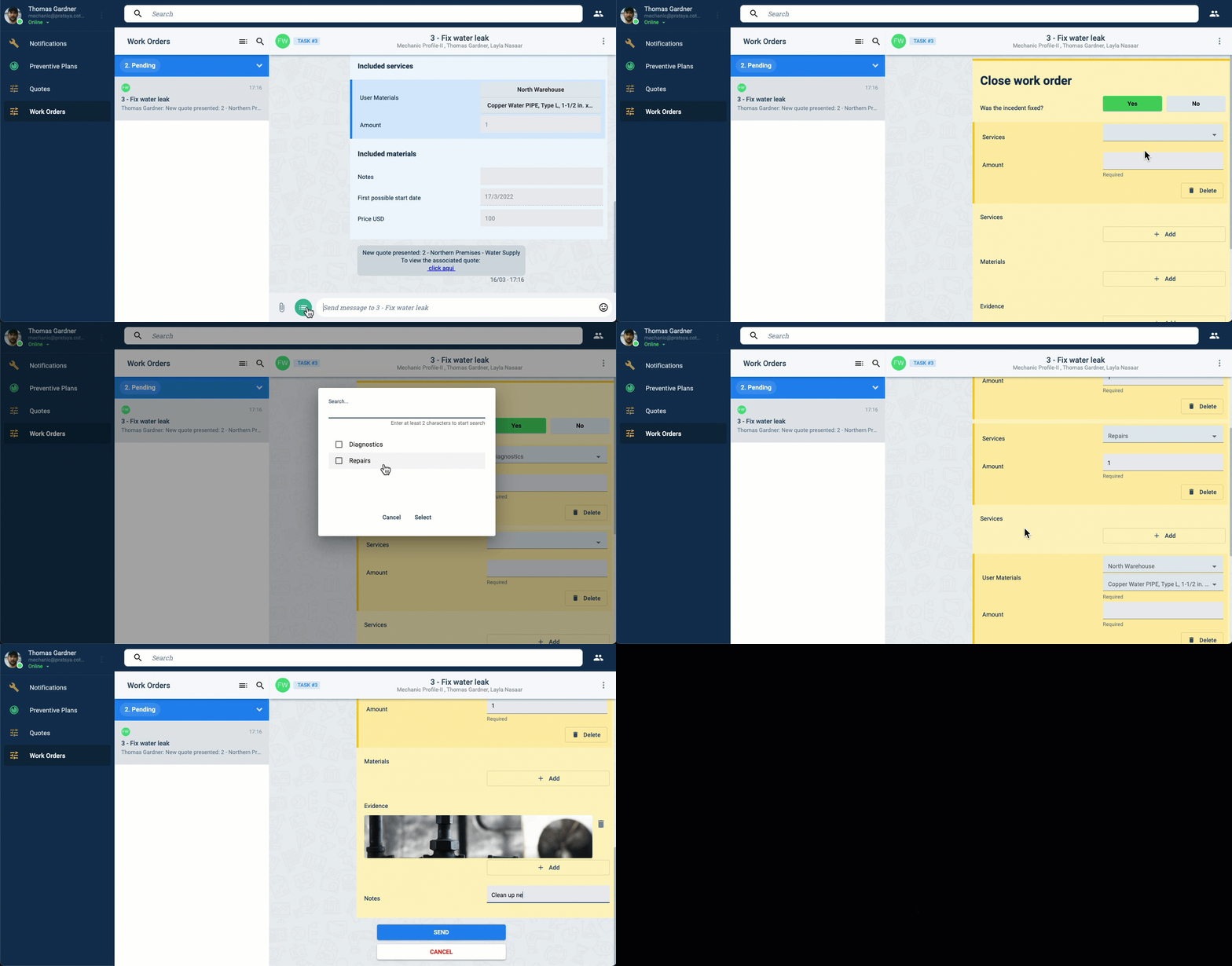
The workflow now passes to the validate state. Layla's approval is required to close the workflow.
Acceptance of Work
We are a step away from officially closing the work order. Layla sees on the channel that Thomas has submitted the Close Work Order form. So now she must check if the job was done correctly. Seeing that everything was done satisfactorily, she sends the Acceptance of Work form.
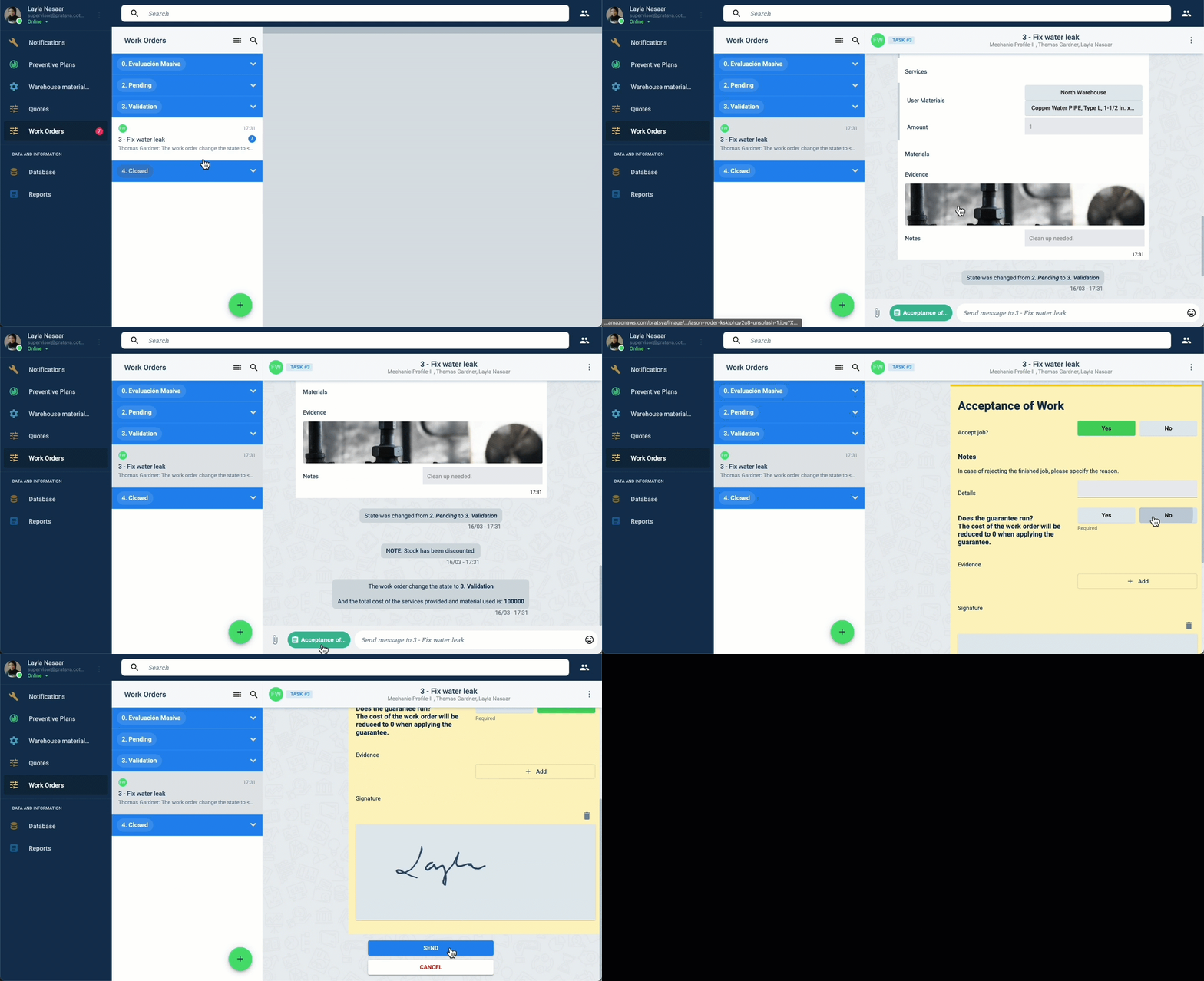
Once the work has been accepted, the workflow is closed.
Afterward, a feedback form appears so the supervisor can evaluate the contractor's service. Layla can fill out the form, and Thomas will be able to see its result on the channel.