Work Orders Workflow
Creating Work Orders
Two survey forms are available for creating work orders when using the Corrective Maintenance product.
To create a work order, follow the instructions below:
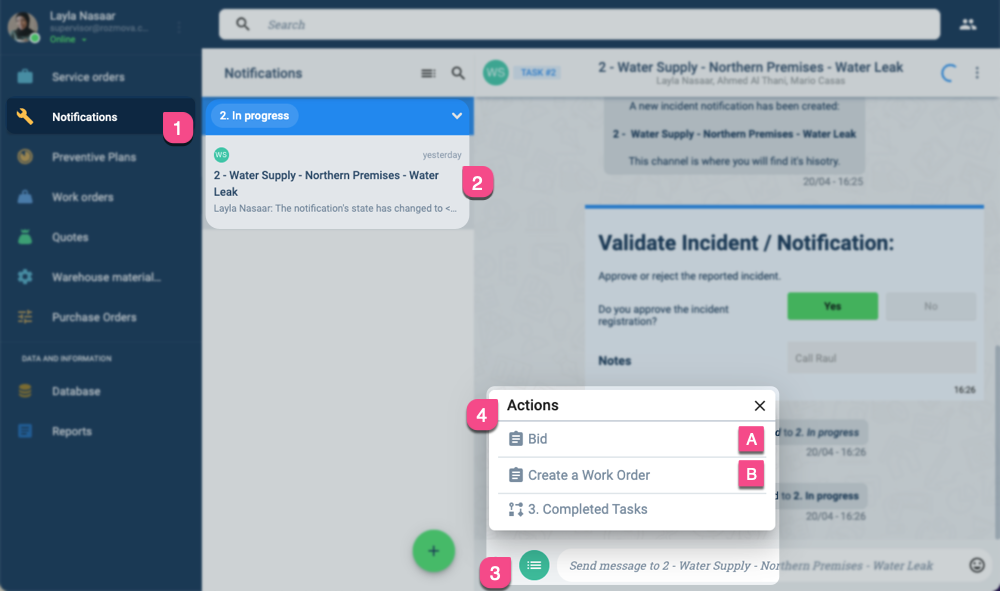
- Press Notifications in the Main Menu Bar.
- Select the corresponding incident report from the Notifications panel.
- From the channel workspace, press the action button to open the Actions menu.
- Press one of the following options from the Actions menu:
- A. Bid: Create and send multiple work orders to contractors chosen from a list. Contractors can then send quotes for bidding.
- B. Create Work Order: Create and send a single work order to predefined stakeholders.
A. Bid
Allows supervisors to create a work order for the notified maintenance issue and send it to multiple contractors chosen from a list in the survey form.
After choosing the Bid option, the following form appears:
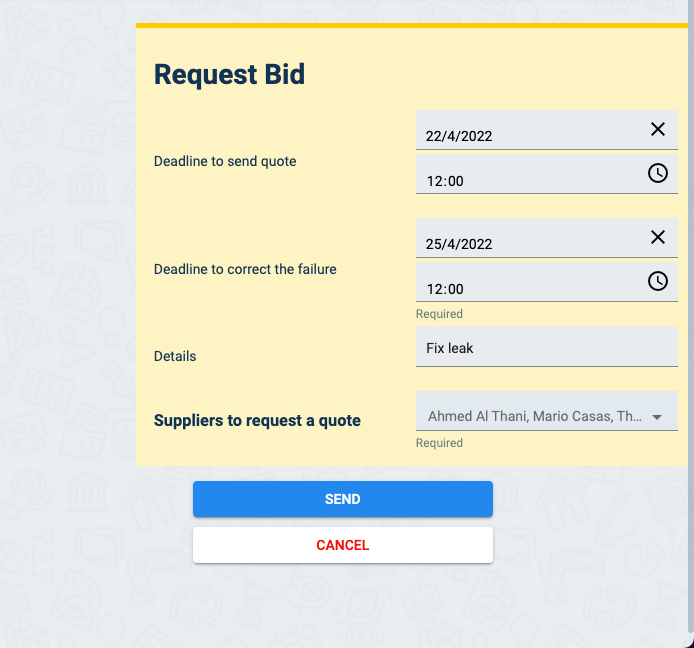
On this form, set deadlines, write details, and choose from suppliers listed in the database. The rest of the details registered in the notification are automatically added and sent in the work order.
A work order workflow will be created for each selected supplier. They can then send quotes for bidding. The corresponding stakeholders will have to approve or reject the quotes.
B. Create Work Order
This option lets you create a single work order that involves predefined stakeholders.
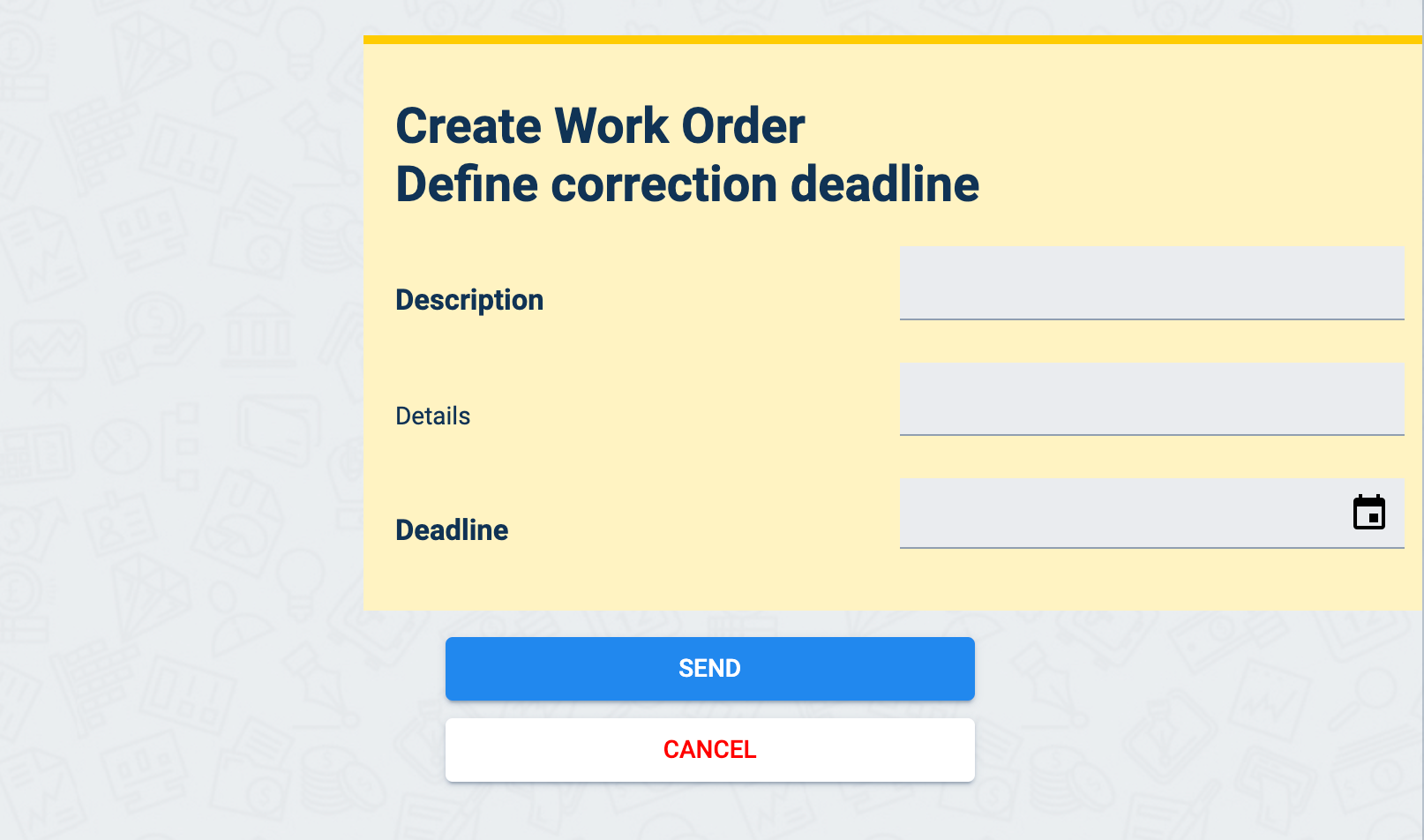
The form permits adding a description, details, and setting a deadline for the correction to be completed. The rest of the details registered in the notification are automatically added and sent in the work order.
Once submitted, the work order workflow initiates and is set to the first state, i.e., reported. Simultaneously, the form is sent to technical teams or contractors to request their services.
After creating the work order, maintenance personnel review it and can choose to accept it or not with the Accept Work Order form.