Purchase Orders Workflow
Jennifer works in the logistics department of her company. She's been put in charge of office supplies in her sector. Since they're running low on paper and ink for their printers, she has decided to make a purchase order. She wants to make a big purchase, so they're going to have it all delivered directly to the warehouse.
View each step of the process in 30-second screen recordings:Create Purchase Order
She starts out by creating the purchase order and sending it out for approval. To do that, she simply goes to the Purchase Order tool and presses the action button to open up the corresponding form.
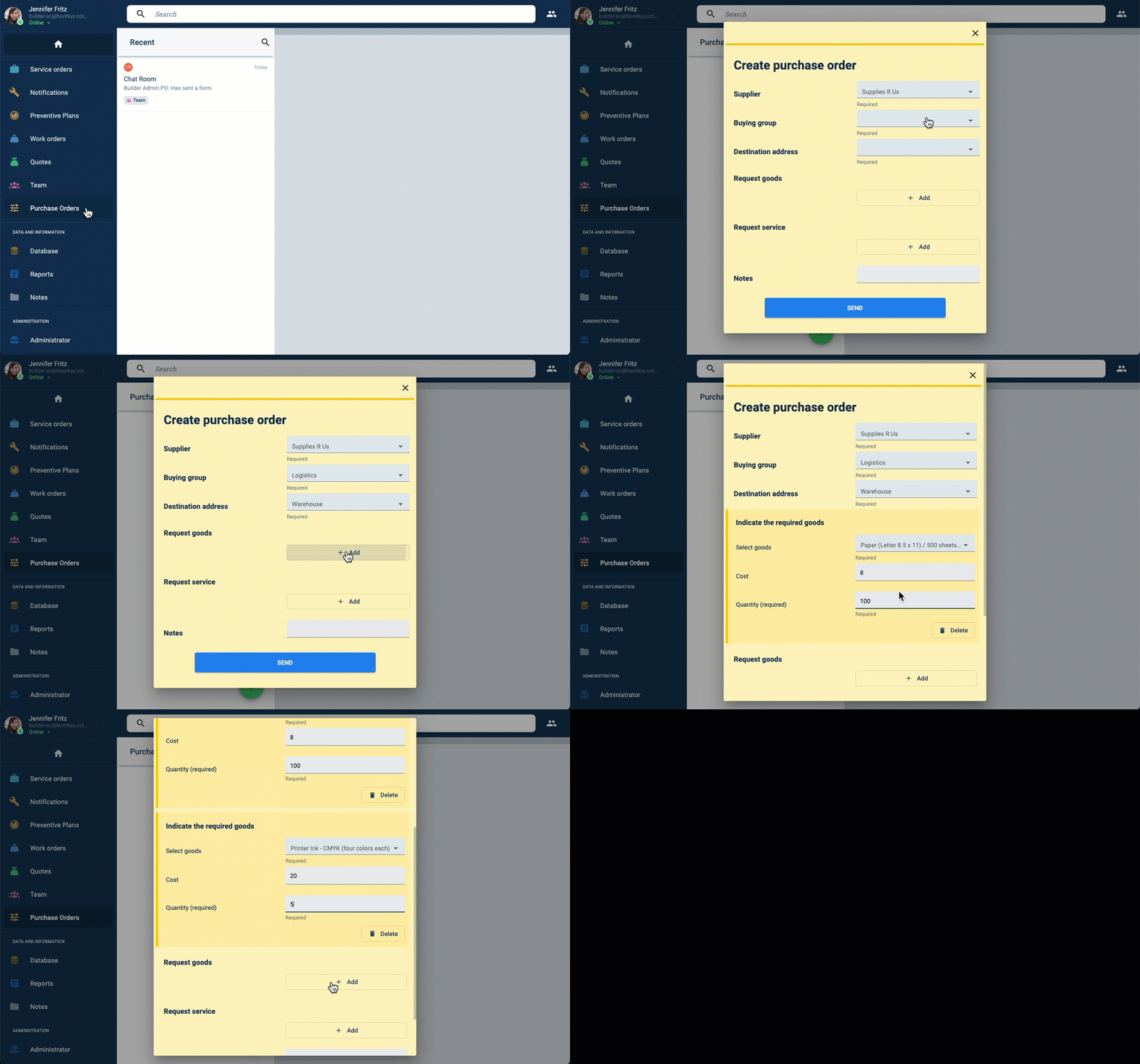
Since the form is connected to the company's master data, all relevant options for her user role are made available. Once she submits the form, it is automatically sent to the corresponding reviewers for approval.
Release Level 1
Mario is the first-level releaser. This means that all purchases equal to or above $100 must get his approval. Jennifer's purchase request costs $900, so Mario has to review it before it can go to the next release level.
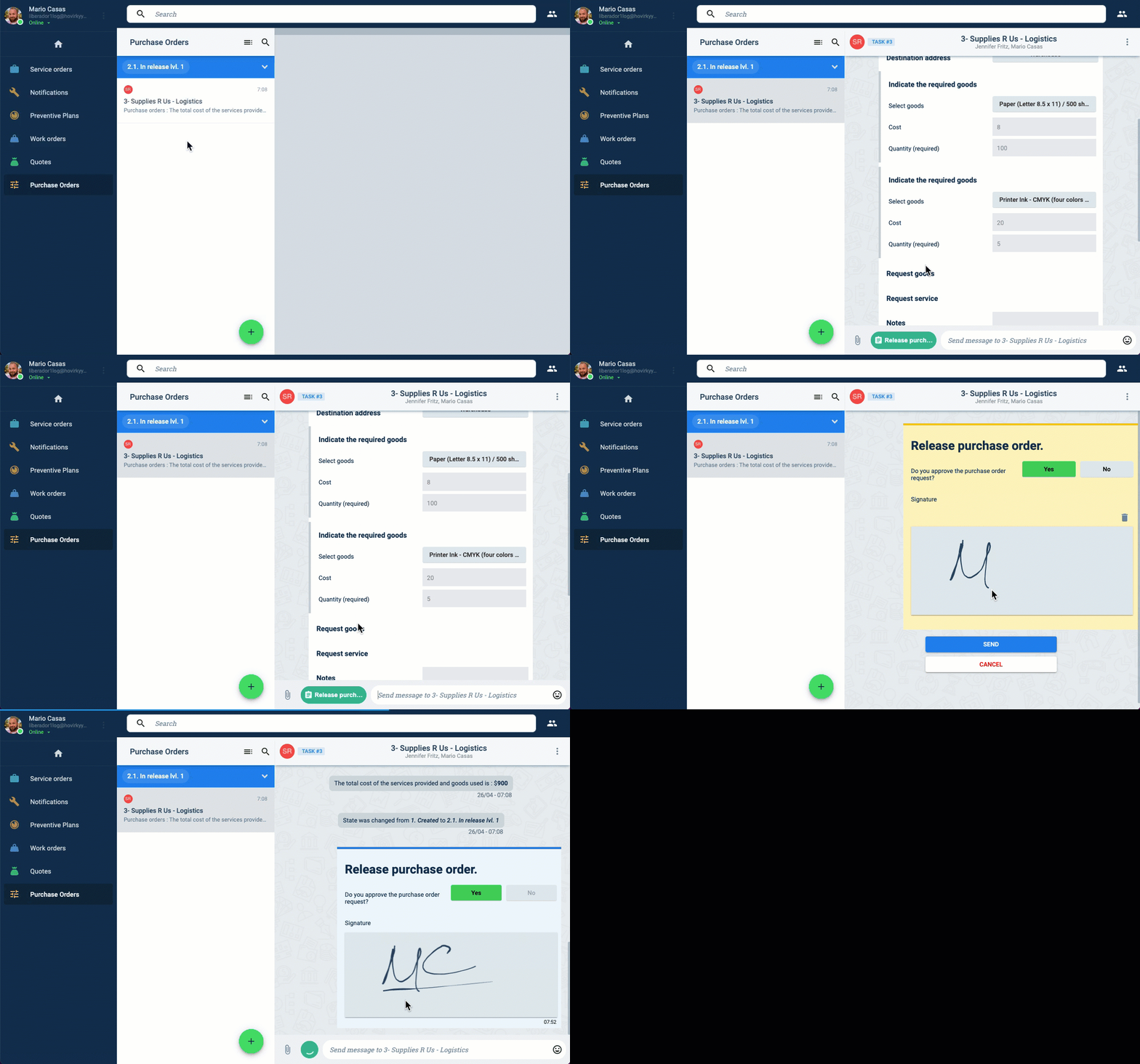
Once the approval form is signed and submitted, it is sent to the next release level. Since Mario's work here is done, he is automatically taken off from the purchase order's channel.
Release Level 2
Sarah has now received Jennifer's purchase order request. She's the second level releaser, i.e., she reviews all purchase requests over $500. She approves the request by signing and submitting the form.
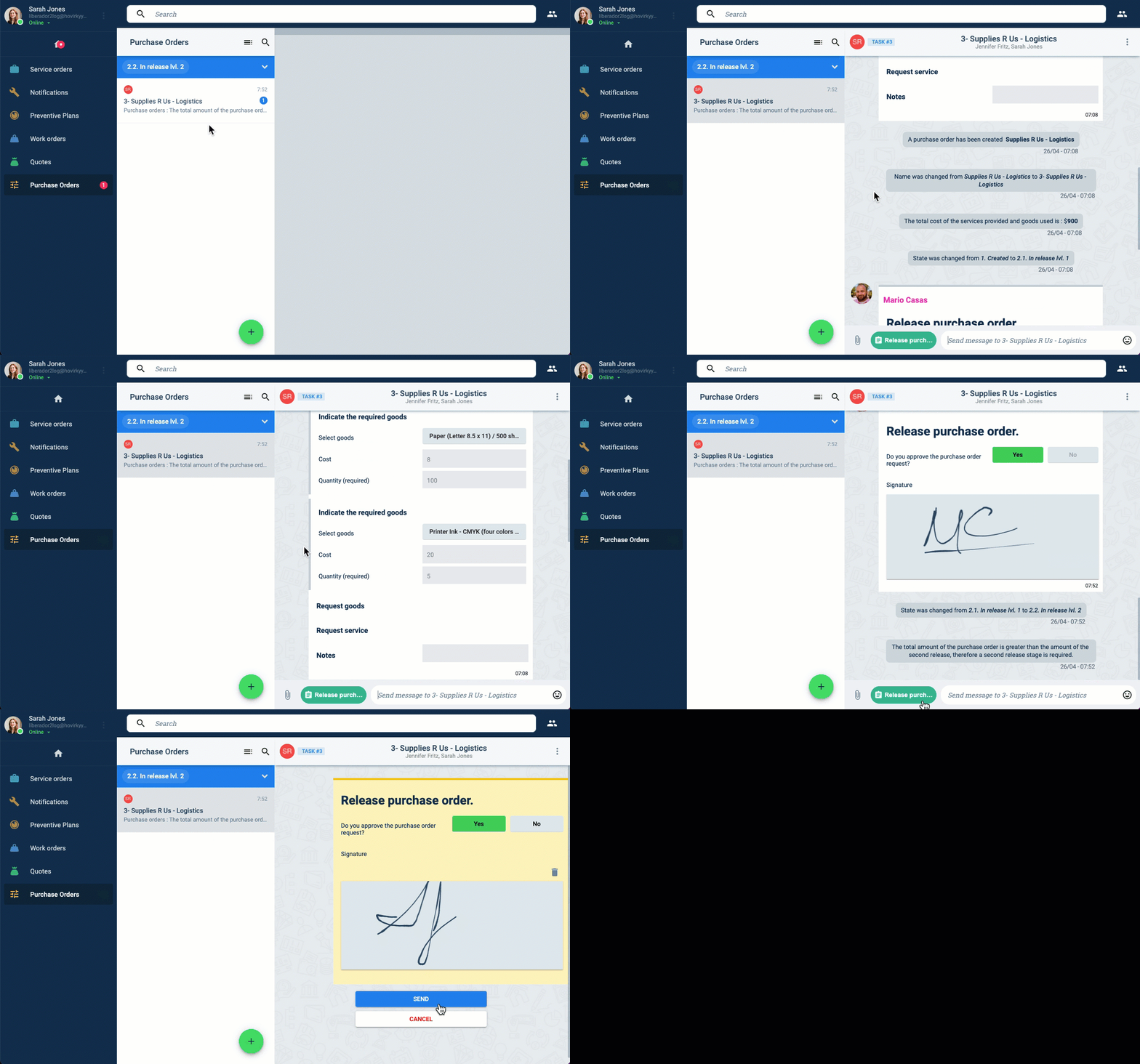
Since the purchase order is less than $1000, it does not have to pass through the third release level. It is now fully approved. A purchase order document is generated in PDF format and automatically sent to the supplier.
Declare Receipt (first delivery)
We find ourselves now in the warehouse, where Luis is in charge of receiving deliveries from suppliers. He gets a big delivery of paper and some ink.
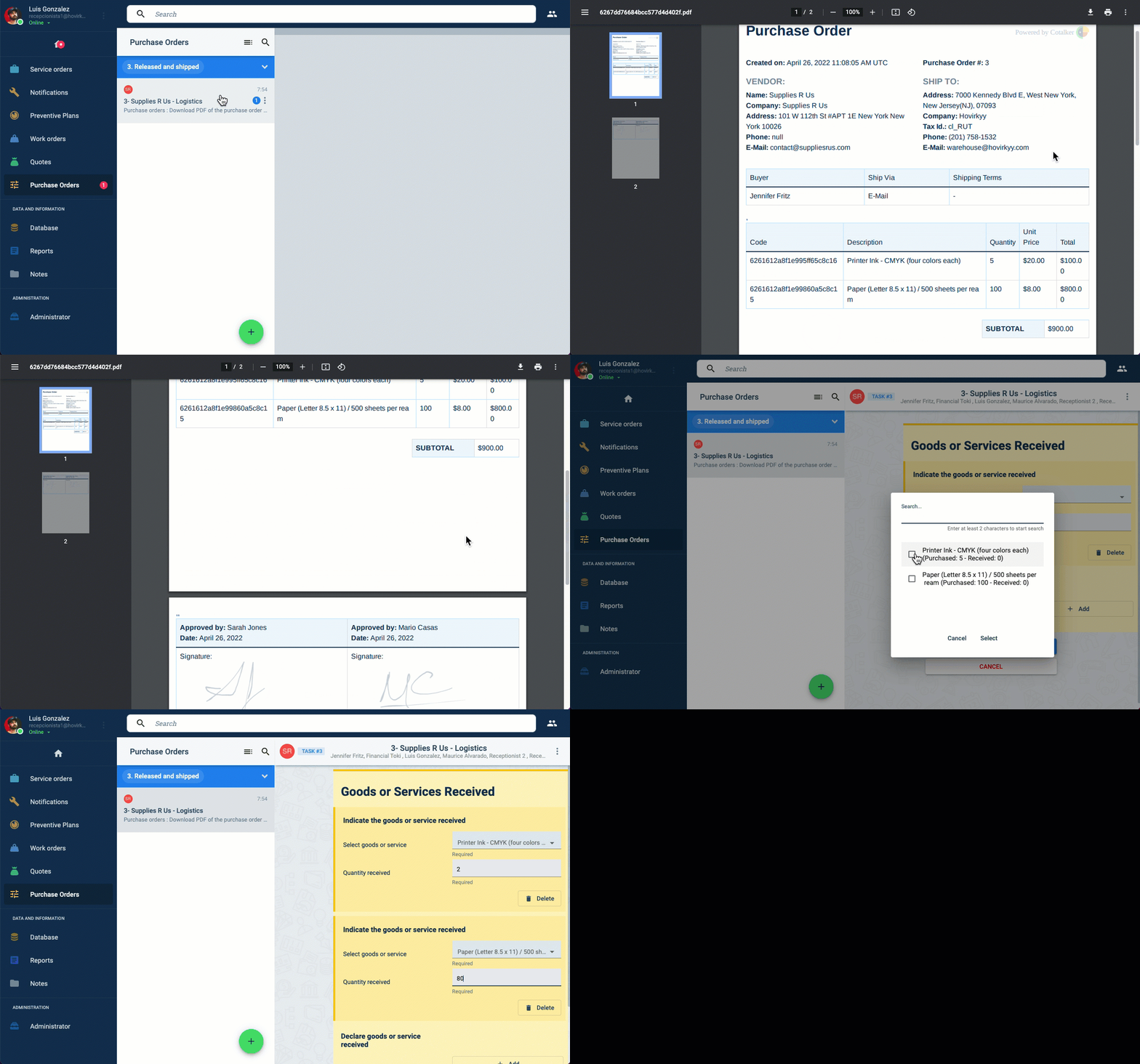
After checking the purchase order, he notices that this is not the total amount of goods purchased. It turns out the supplier had some stock and logistics problems, and will be segmenting the delivery. Luis registers what he has received so far from the supplier with the Declare Receipt form.
Luis will then pass the invoice he received to Christina in accounting.
Billing (first invoice)
Christina works in accounting. Luis gave her the partial delivery invoice, and now she must register it. She goes to the purchase order channel and fills out the Billing Form.
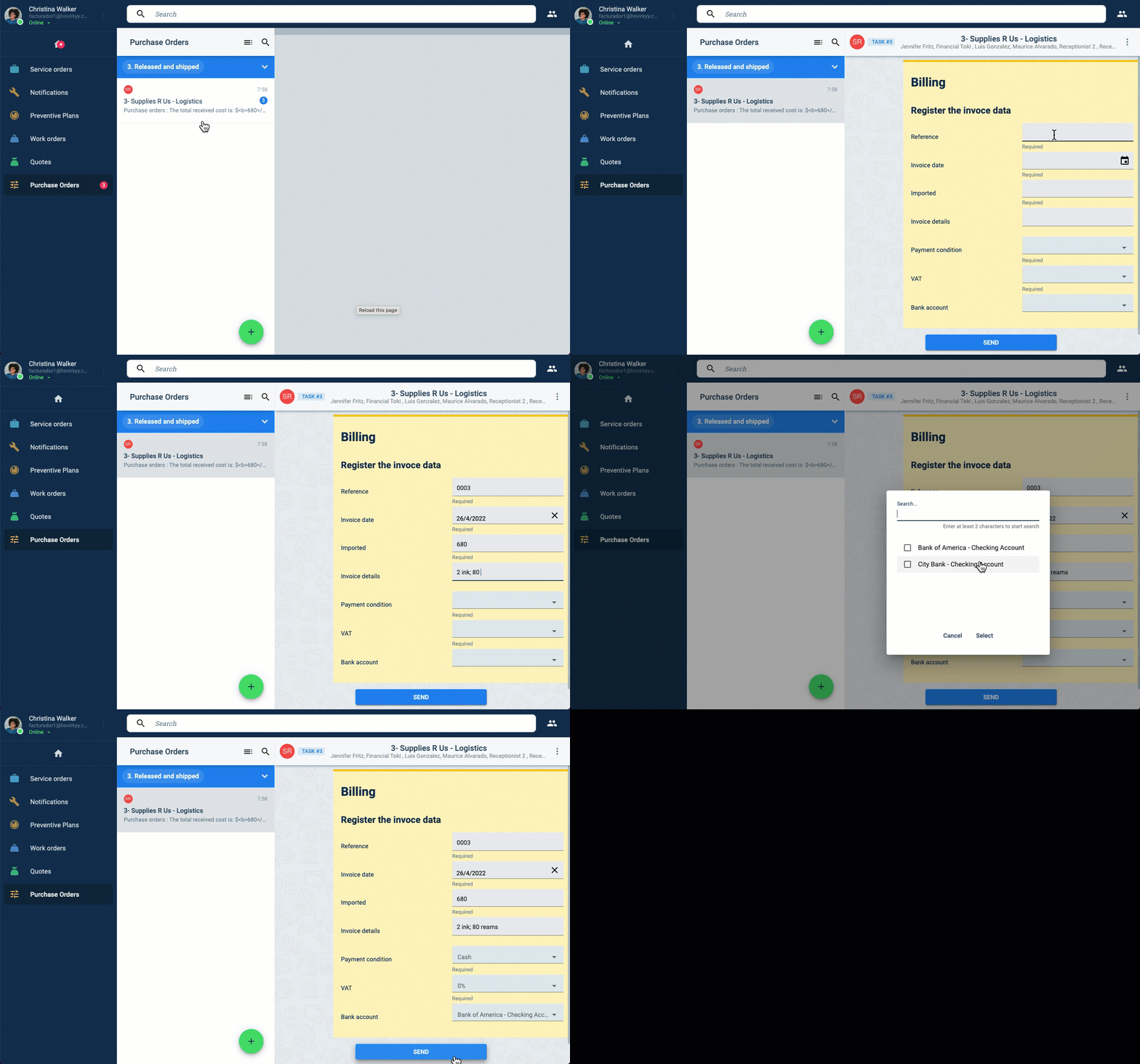
The Billing Form is connected to the company's master data and the purchase order. This helps Christina easily select the supplier's billing information. It also keeps track of the total costs to be paid according to the goods and services received.
Declare Receipt (second delivery)
The final shipment of paper and ink arrives. Luis checks purchase order information and past reception registries. The Declare Receipt form also reminds Luis the amounts previously received.
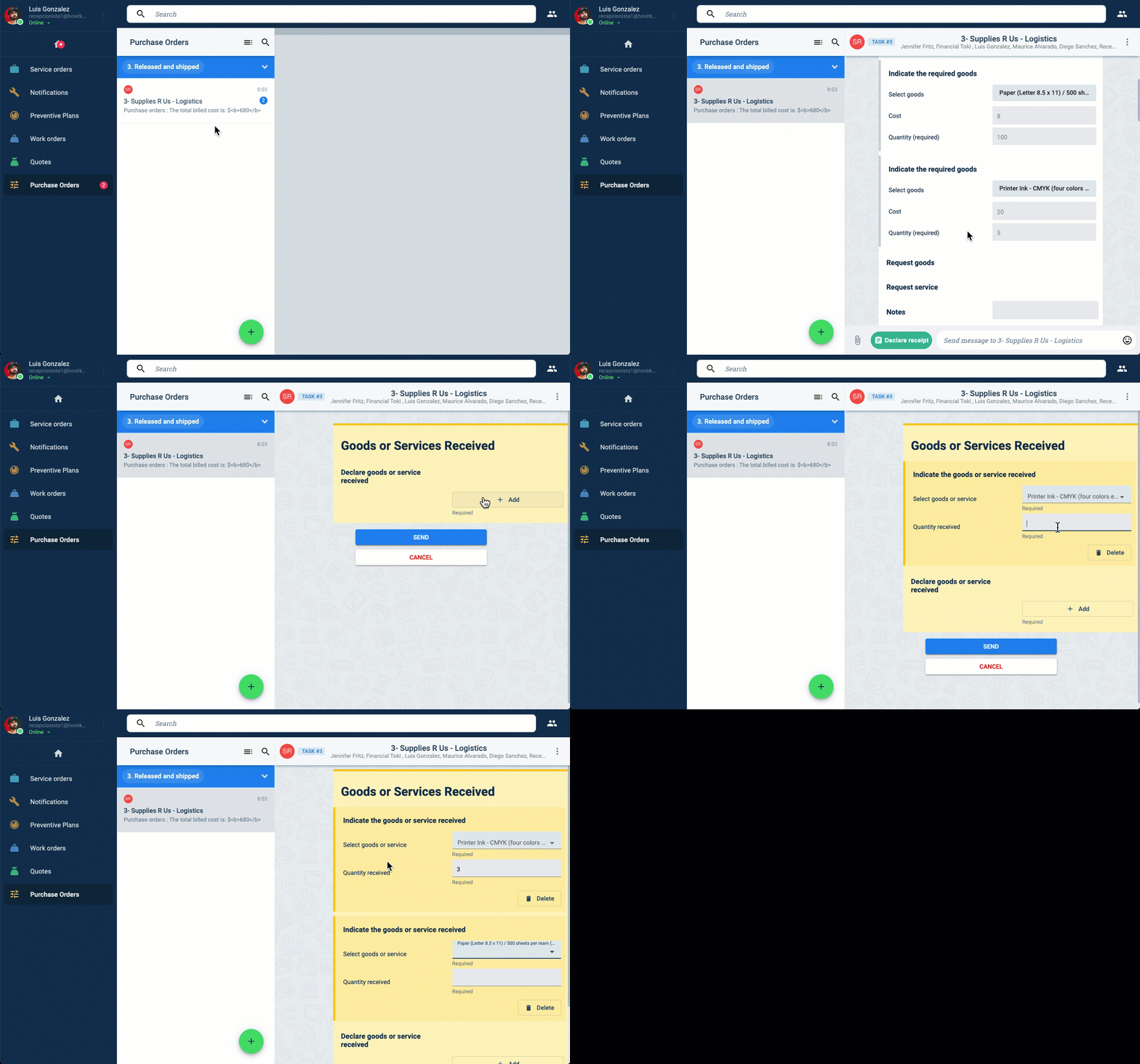
He enters the data, all the purchased goods have arrived. He sends Christina the invoice.
Billing (second invoice)
After receiving the new invoice, Christina starts filling out the Billing Form. While doing so, she accidentally entered a higher cost than expected. The system instantly corrects her error and notifies her of what the maximum payment should be based on the goods already received and paid for.
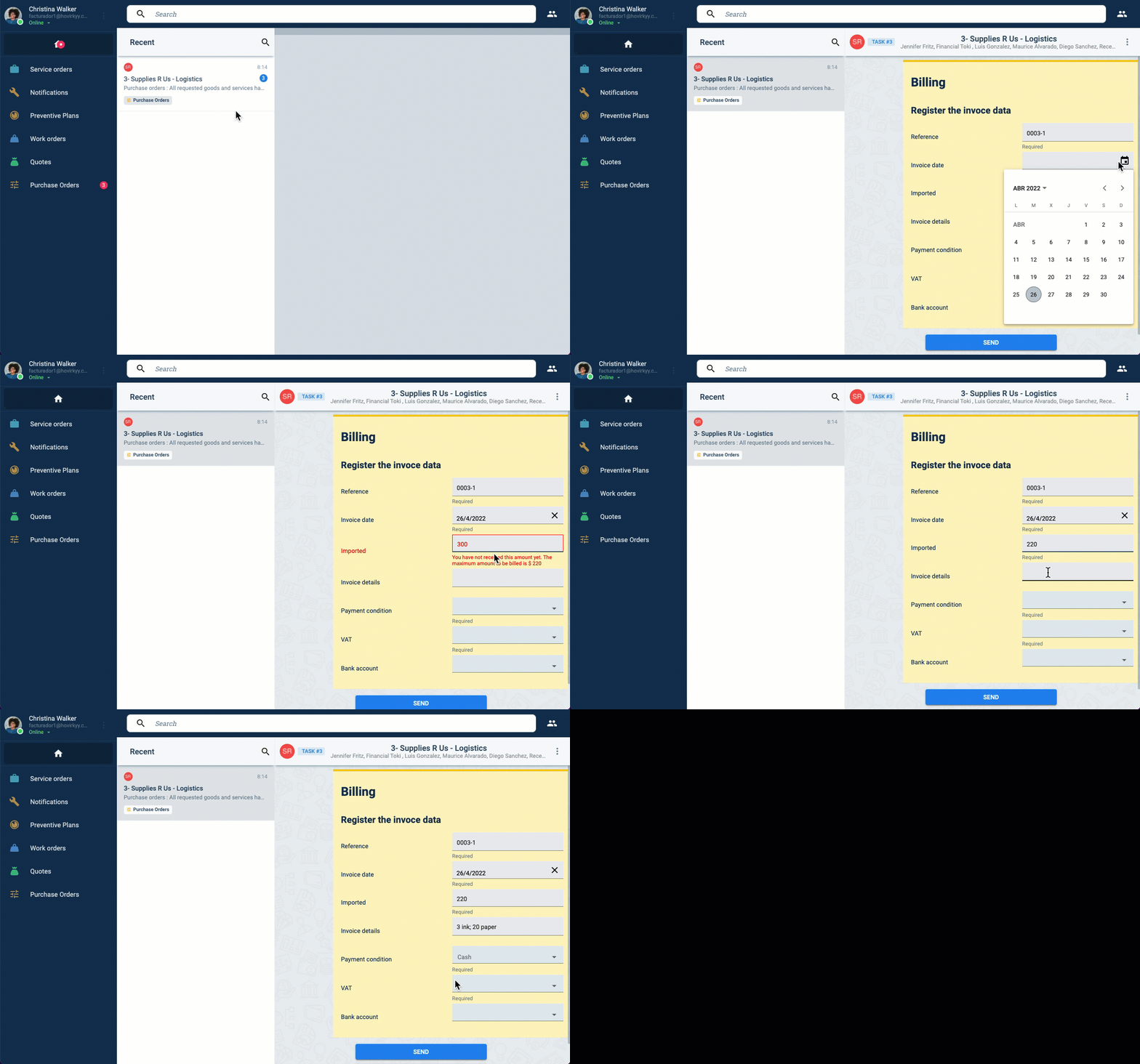
After Christina submitted the form, the process is complete. Now, Jennifer or her supervisor can finally close the purchase order workflow.
Close the Purchase Order
Jennifer has been following the entire purchase order process. Now, only she is left in the channel. With nothing more to do, and after checking that everything is in order, she can close the purchase order workflow.
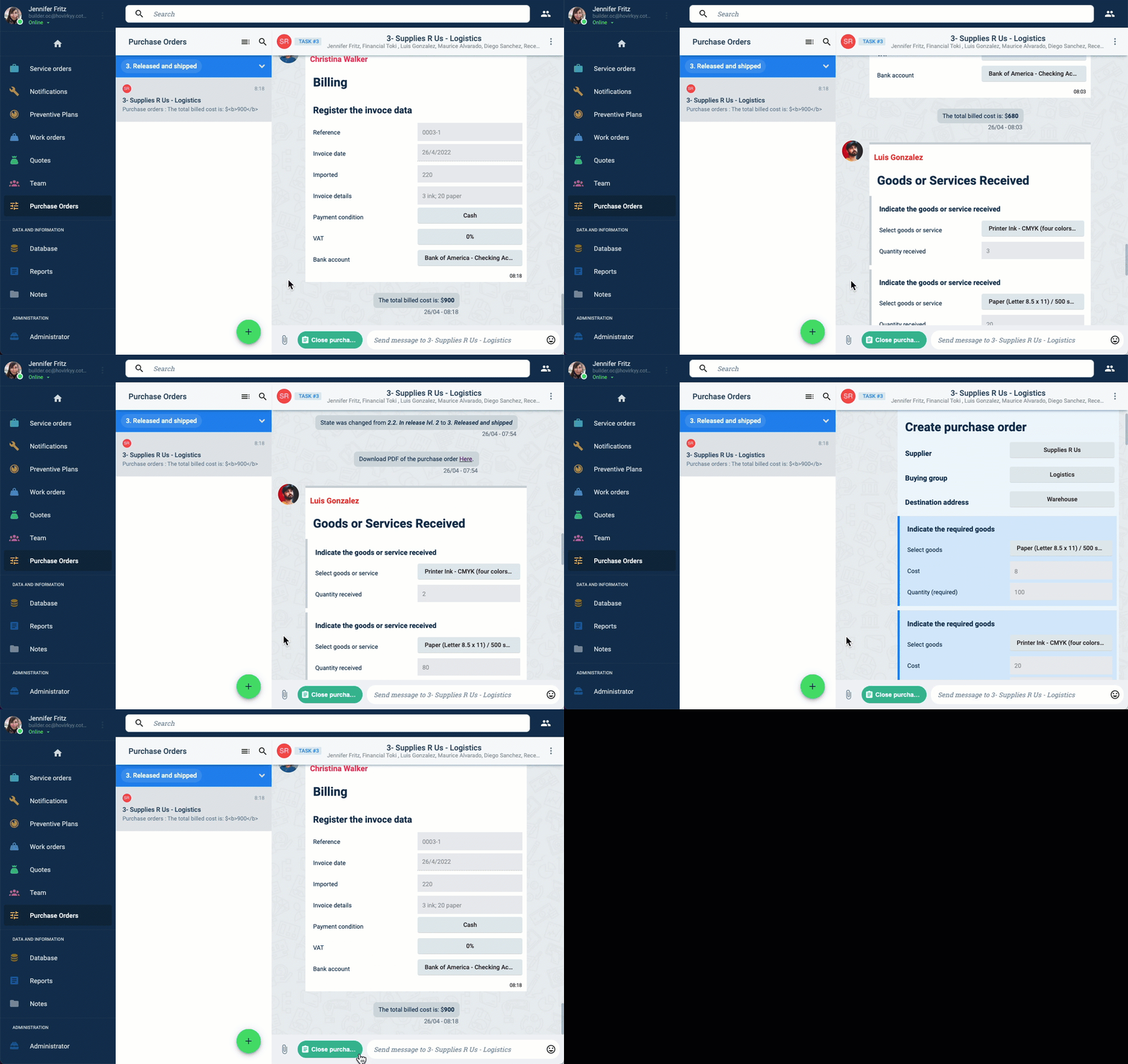
And that's it! Easily automate and keep track of the entire purchase order process in just one place.