Survey Component
Overview
The Survey component functions as a sub-survey. It is used to add an existing survey into the survey you are creating or editing.
Users will see a button on the main survey form to open the sub-survey questions and fill them out. Depending on the settings, users can add the sub-survey questions more than once.
Description
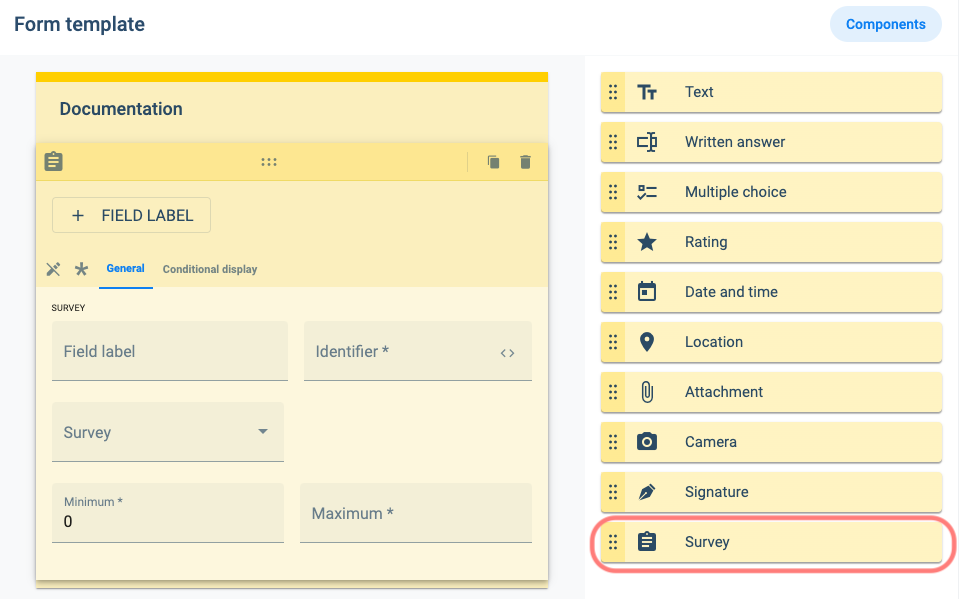
The fields unique to the Survey component are described in the following table:
| Field | Description | Notes |
|---|---|---|
| Survey | Select a survey from a list of all existing surveys. | A dropdown menu with checkboxes will appear when the field is clicked. More than one option can be chosen. |
| Minimum | Indicates the minimum amount of times users must add the sub-survey to the main survey. | If set to zero, the sub-survey is not required to submit the main survey. |
| Maximum | Indicates the maximum amount of times users can add the sub-survey to the main survey. |
Standard fields are described in the general field descriptions section.
Examples
Survey Component Setup
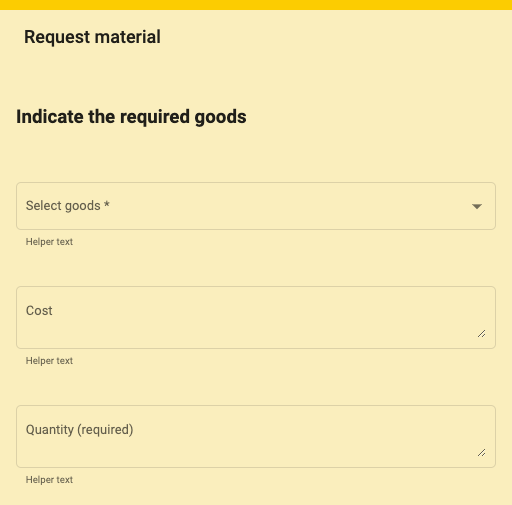
Here's a form template used to request goods as a sub-form. This form only requires selecting the material and the quantity:
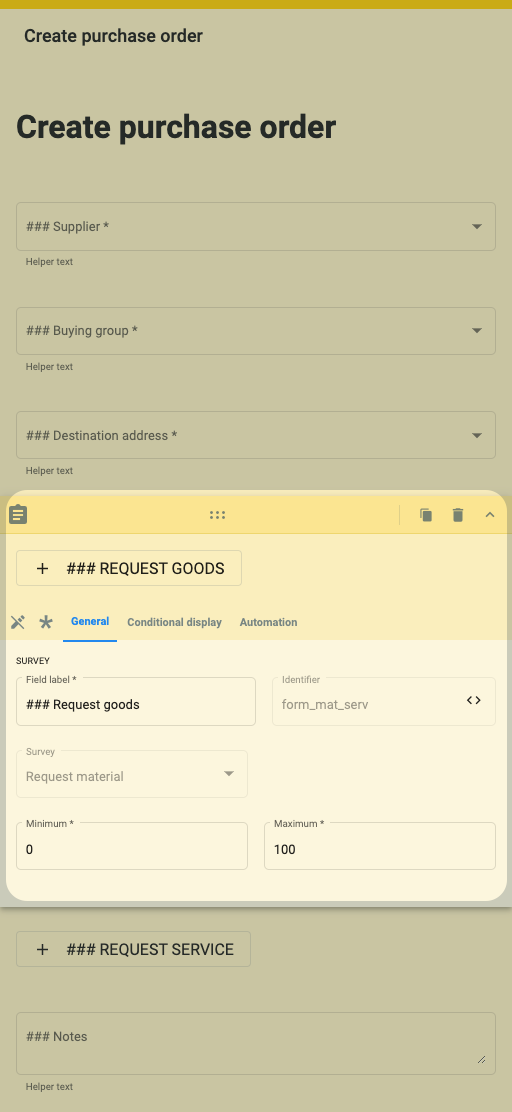
Then the form –called (WS) Add Material– is incorporated as a survey component within the main form called Material Request:
End-User Interface
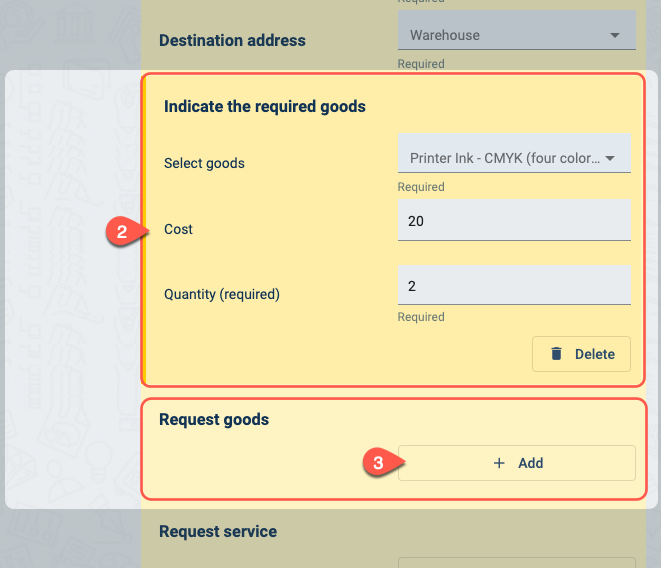
To answer a sub-form within a form, users must:
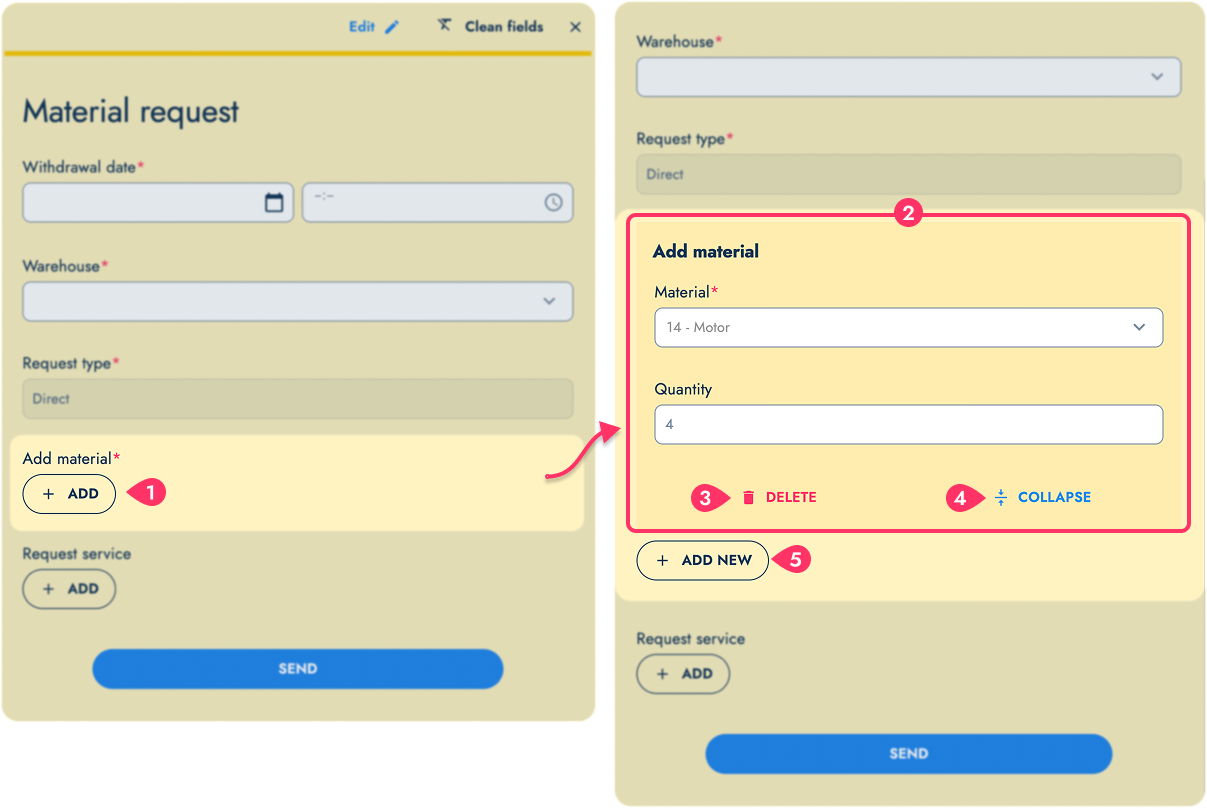
- Press the + Add button to open the sub-form.
- The sub-form is embedded within the main form.
- Click delete to remove this sub-form.
- Click "collapse" to stop editing this sub-form and collapse the information.
- To open another instance of the sub-form, users can press the + Add New button as needed and permitted by the form's configuration.
When submitting the main form, it is sent with all the information from the sub-forms within. Each sub-form can also be re-edited or deleted at any time, even from its collapsed view.
Related Topics
- Survey API Reference: Information on how to get and configure surveys through our API tools.
- COTSurvey: Survey data model documentation.