Bulk Actions
Sometimes you need to do the same thing to many tasks at once — fill out the same form, update the same field, or remove a batch of them. Instead of opening each task one by one, the task view lets you act on a whole selection of tasks together. This page covers bulk actions: applying a form to every selected task in a single step.
Selecting multiple tasks
Bulk operations start with a selection. In the task view, pick the tasks you want to act on — tick them individually, or select an entire group. Once one or more tasks are selected, the bulk options become available in the view's header.
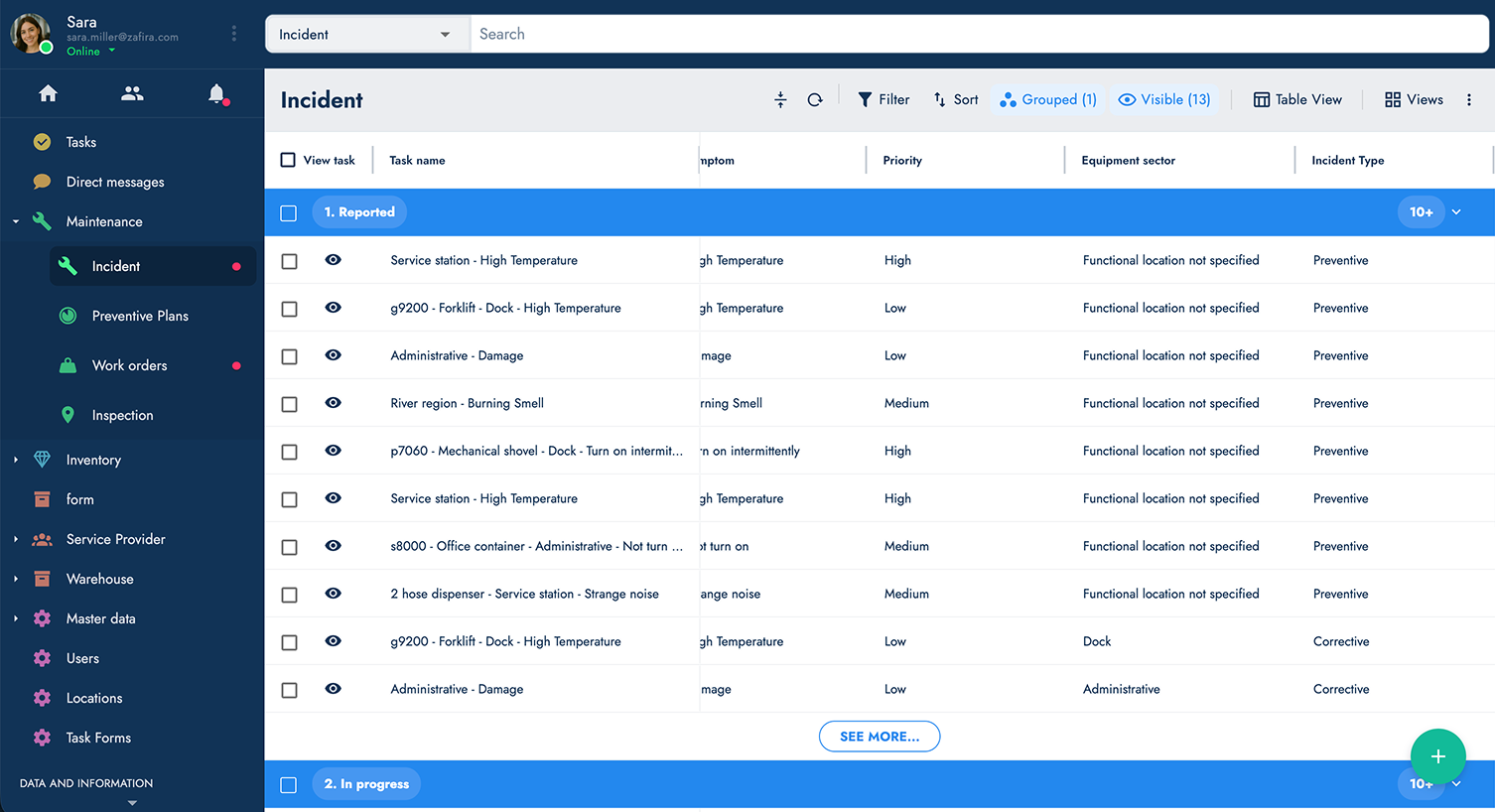
Running a bulk action form
A bulk action form is a form (survey) that runs against every task in your selection at once — for example, marking a batch of tasks as reviewed, or recording the same inspection result across many of them.
To run one:
- Select the tasks you want to act on.
- Open the Actions menu in the task view header. It lists the bulk action forms available for that task group.
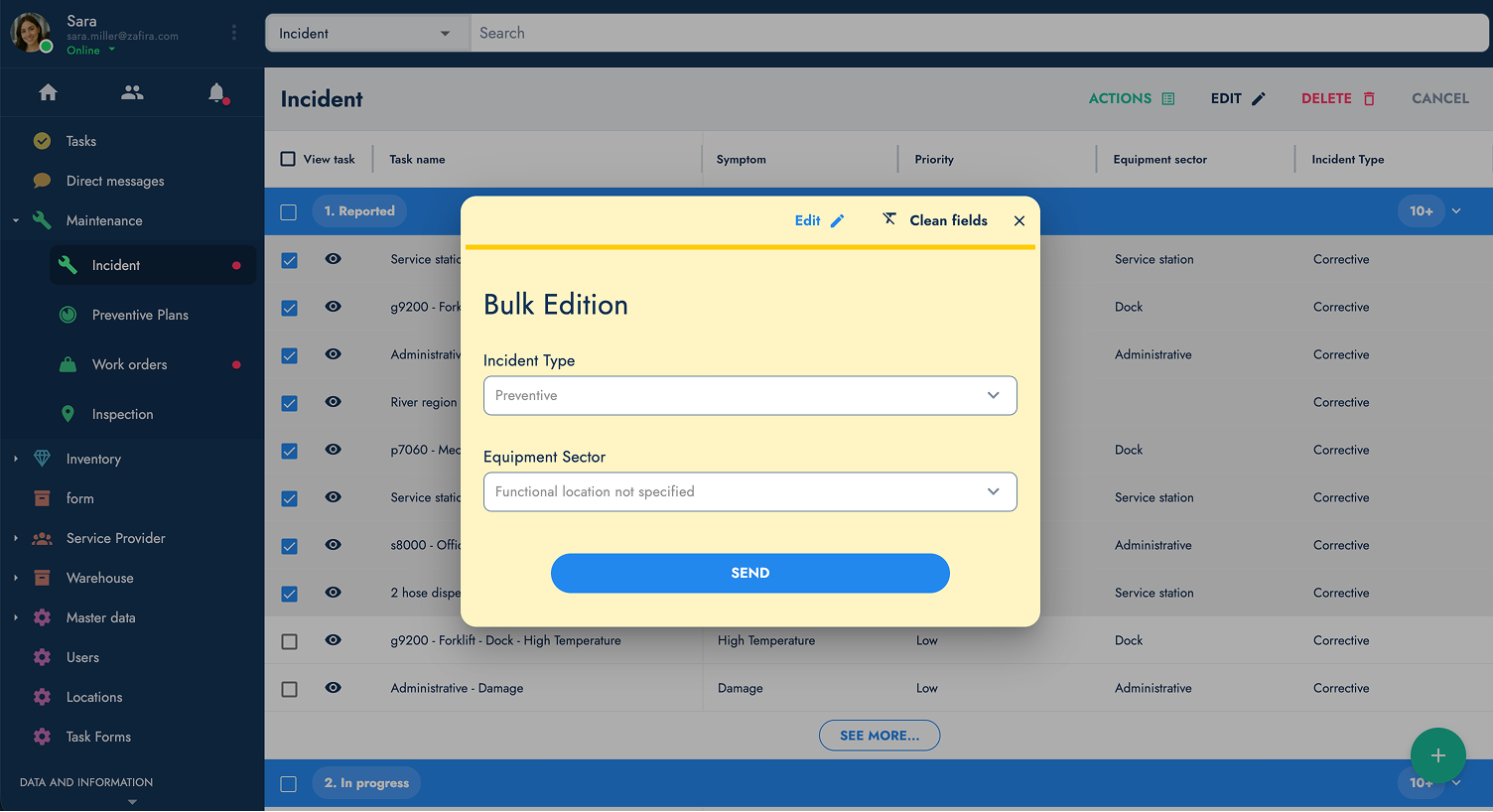
- Choose a form. It opens just like a normal form.
- Fill it in and submit. The action is applied to all the selected tasks, and the selection clears once it completes.
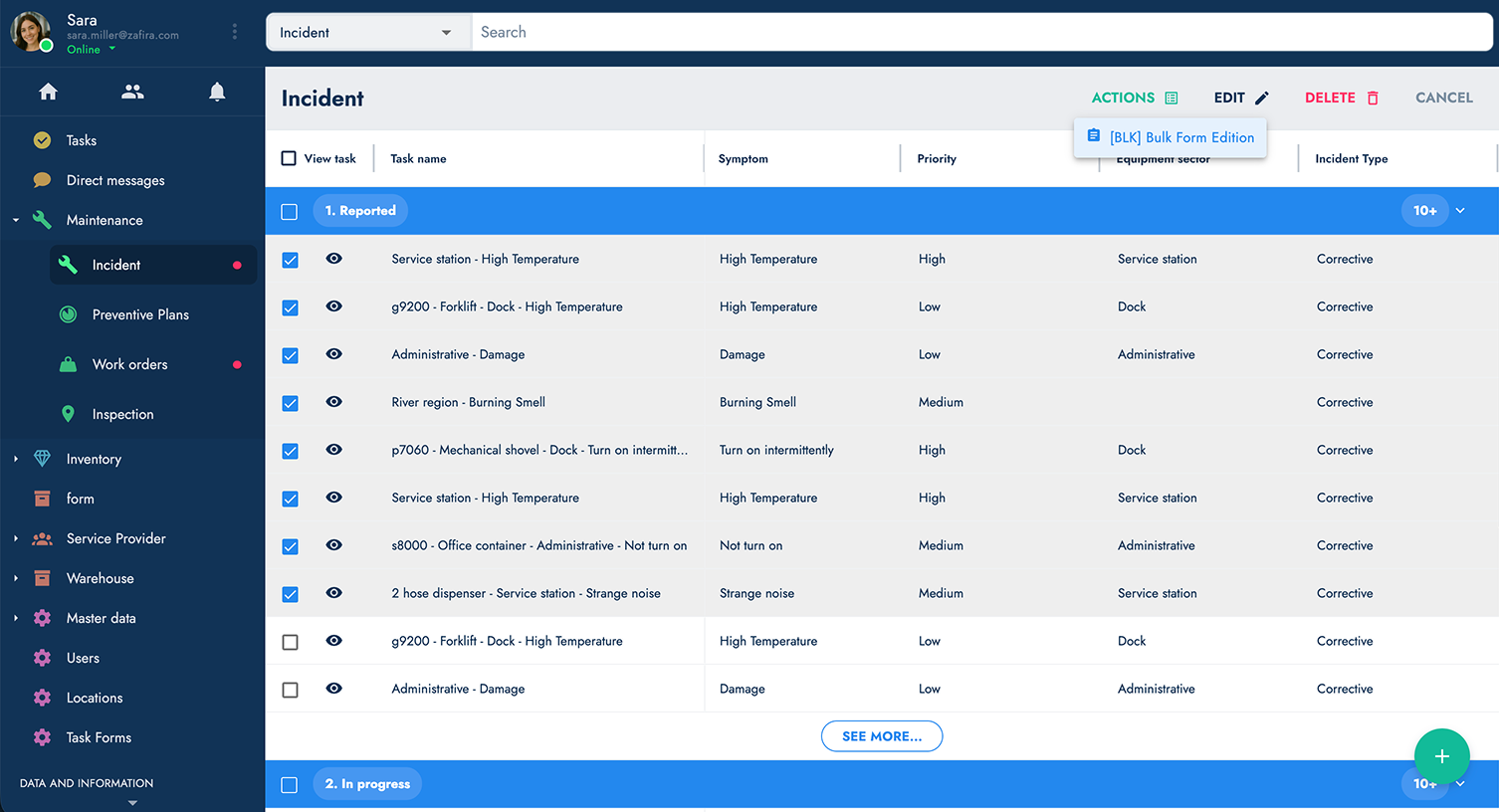
If the menu shows "No bulk action forms available", it means no form has been set up as a bulk action form for that task group yet. See Setting up a bulk action form below.
Setting up a bulk action form
A bulk action form is simply a survey that has been flagged as a bulk action form. This is configured in the Administrative Panel, not in the task view:
- In the admin Surveys section, open the survey you want to use (or create a new one).
- Enable the Bulk action form setting on the survey.
- Save.
Once flagged, the survey:
- appears under the dedicated Bulk list in the admin Surveys section, and
- becomes selectable from the Actions menu in the task view for the relevant task groups.
A survey marked as a bulk action form is removed from the normal single-task action menu — it's intended for acting on a selection, not on one task at a time. Keep separate surveys for single-task and bulk use.
Other bulk operations
Beyond running forms, the task view offers two more bulk operations on a selection, available as buttons in the selection header:
- Edit — opens a dialog to update the same field(s) across all selected tasks at once.
- Delete — removes all selected tasks at once.
Both follow the same pattern: make your selection first, then choose Edit or Delete from the header.
Bulk operations act on the tasks of the currently selected group. Make sure you're in the right group before selecting and applying an action.